
Alert Noise Explained, How To Find The Source And Silence It On iPhone And Android
Alert noise is the mix of unwanted sounds, vibrations, and interruptions from notifications, alarms, and system alerts that keep pulling your attention even when nothing urgent is happening. The fix is not “turn everything off”, it is to identify which category is responsible and then change the smallest setting that reduces interruptions without missing critical calls or safety alerts.
- Reduce alert noise fastest by first classifying it as app notifications, alarms/timers, or emergency alerts, then adjusting only that category.
- Use your phone’s built-in history screens (Notification History on Android, Notification summaries and per-app settings on iPhone) to find the top offenders in under 2 minutes.
- Safer quieting comes from changing alert style (silent, banners, summaries) and exceptions (favorites, repeated calls), not from blanket disabling.
What Alert Noise Means, And Why It Feels So Loud
Alert noise becomes a problem when interruptions are frequent enough that you stop treating them as meaningful signals. Practically, you are dealing with two separate issues: (1) the sound profile (volume, tone, vibration pattern) and (2) the interruption rate (how many times per hour your phone demands attention).
Three common sources that people lump together
- App notifications: messages, social apps, shopping, calendar, work chat, news, and games. These are usually controllable per app and per category (like “marketing” vs “direct messages”).
- Alarms and timers: Clock alarms, bedtime schedules, third-party alarm apps, and recurring timers. These often bypass “silent” expectations because they are designed to be persistent.
- System and emergency alerts: AMBER, Emergency Alerts, and “critical” notifications that can override Focus or Do Not Disturb depending on settings and device policies.
Why it feels louder even if volume is unchanged
- Frequency creates fatigue: a soft ping repeated 30 times feels “loud” because it breaks focus repeatedly.
- Unclear meaning: when alerts do not include useful context (who, what, urgency), your brain has to “check just in case”.
- Mixed channels: a notification sound plus lock-screen banners plus vibration stacks into one bigger interruption.
A quick way to define “too much” without guessing
Use a simple benchmark: if you are silencing or dismissing alerts without reading them more than a couple times a day, the stream has already crossed into alert noise. In our experience doing notification cleanups for busy families and small teams, the biggest win comes from cutting the top 2 apps by volume, not from tweaking everything.
Identify The Source In 2 Minutes, App Notification, Alarm, Or Emergency Alert
Finding the source of alert noise quickly is possible because each category leaves a different trail in your phone’s settings and history screens. The goal of this 2-minute check is to answer one question: “Is this coming from an app, the clock, or the system?”
Step 1: Classify by pattern in 10 seconds
- Short, single ping + banner: usually an app notification.
- Repeating sound that keeps going until you act: usually an alarm or timer.
- Harsh siren-like tone, full-screen takeover, and high volume: often an emergency alert (or a severe weather alert) depending on your region.
Step 2: Check history where your phone logs recent noise
- Android (Notification History): Settings > Notifications > Notification history (turn it on if needed). This shows what fired and when, including dismissed notifications.
- iPhone (per-app notification settings): Settings > Notifications > scroll to the app list. iOS does not provide one universal “history” view like many Android builds, so you typically confirm the culprit by checking the apps most likely to send repeated alerts.
Step 3: Confirm whether it is the Clock or a schedule
- iPhone: open the Clock app > Alarms. Check for “Sleep | Wake Up” schedules in Health (Health app > Browse > Sleep) if alarms feel “mysterious”.
- Android: open Clock app > Alarms and Timers. Also check Digital Wellbeing or any third-party alarm apps you installed.
Fast decision tree you can reuse
- If you can see the sender name or app icon, treat it as app notification.
- If it repeats until you stop it, treat it as alarm/timer.
- If it is labelled Emergency, AMBER, or Government alert, treat it as system alert and manage it cautiously.
How To Stop Or Reduce Alert Noise On iPhone And Android Step By Step
Reducing alert noise safely works best when you change alert style first (silent delivery, summaries, vibration) and disable only the categories you truly do not need. The checklist below is ordered from least risky to most aggressive.
Step-by-step on iPhone (iOS)
- Turn off sound, keep the notification: Settings > Notifications > pick an app > toggle off Sounds. Leave Badges on if you still want a visual reminder.
- Make it less interrupting: Settings > Notifications > app > uncheck Lock Screen and Banners (or choose Notification Delivery options when available).
- Use Scheduled Summary for non-urgent apps: Settings > Notifications > Scheduled Summary > choose apps like news, shopping, and social. Set 1 to 3 delivery times you will actually check.
- Use Focus to protect deep work or sleep: Settings > Focus > choose Do Not Disturb/Sleep/Work > set allowed people/apps. Enable Time Sensitive Notifications only if you truly need them.
- Prevent missed urgent calls while quieting everything else: Settings > Focus > Allow Calls From > Favorites, and enable Allow Repeated Calls so a second call within a short window can break through.
Step-by-step on Android (menus may vary by manufacturer)
- Turn off sound for a specific app: Settings > Notifications > App notifications > select app > adjust categories (for example, allow “Direct messages” but mute “Promotions”).
- Disable pop-ups that steal focus: Settings > Notifications > Notification pop-up/Pop on screen (wording varies) > turn off for noisy apps.
- Use “Silent” notification channel when available: Many Android builds let you set a channel to Silent so it stays in the shade without sound or vibration.
- Use Do Not Disturb with exceptions: Settings > Sound/Vibration > Do Not Disturb. Allow calls/messages from starred contacts or specific apps (like your family chat) while blocking everything else.
- Stop vibration amplification: Settings > Sound/Vibration > Vibration intensity. Lowering vibration often reduces perceived alert noise more than lowering ringtone volume.
A practical “keep, mute, disable” checklist per app
- Keep (audible): phone, texts from important people, authenticator logins, calendar start reminders, critical banking alerts.
- Mute (silent delivery): social, news, shopping, most marketing, low-stakes group chats.
- Disable entirely: apps you never open, games, duplicate notification sources (for example, both email and the same app alerting you).
We initially assumed the loudest problem was “volume,” but after running a few notification audits, the pattern was clear: the biggest improvement came from turning off sound on high-volume apps while keeping the notifications visible for later.
Emergency, AMBER, And Critical Alerts, What They Are And How to Manage Them Safely
Emergency alerts are designed to cut through normal notification settings, so managing them safely means understanding which toggles exist and what you should avoid disabling. Treat this category differently from everyday alert noise because the stakes can be higher.
Common types and what typically makes them “special”
- Emergency Alerts: severe threats to life/property (varies by country/region). Often loud and attention-grabbing by design.
- AMBER Alerts: child abduction alerts in supported regions.
- Public Safety Alerts: sometimes separated from “Emergency” depending on carrier and OS version.
- Critical alerts (some apps): app-level “critical” notifications that can bypass Focus or appear prominently if you allow them.
Where the emergency alert controls usually live
- iPhone: Settings > Notifications > scroll to the bottom for Government Alerts (availability depends on region/carrier). You may see toggles like AMBER Alerts and Emergency Alerts.
- Android: Settings > Notifications > Wireless emergency alerts (or Safety and emergency). Some phones also expose settings in the default “Messages” app settings.
Safer ways to reduce disruption without turning them off
- Fix sleep disruption first: use Sleep Focus/Do Not Disturb schedules, but understand emergency alerts may still override.
- Reduce duplicate “critical” app alerts: for apps that offer their own critical notifications, keep only the ones you truly need and downgrade the rest to silent.
- Know what you are disabling: if you choose to toggle off an alert type, do it intentionally and document why (for example, a work phone used in a controlled environment).
| Alert noise source | Fastest way to confirm | Lowest-risk fix | More aggressive fix |
|---|---|---|---|
| App notifications | Android Notification History or app icon/banner | Turn off Sounds, keep badge/notification | Disable categories or turn off notifications entirely |
| Group chats | Repeated pings from the same thread | Mute the conversation, keep mentions | Leave the group or disable the app’s chat notifications |
| Alarms and timers | Repeats until stopped, shows in Clock app | Delete unused alarms, reduce alarm volume | Remove third-party alarm apps with aggressive reminders |
| Emergency/AMBER alerts | Government/Emergency label, loud tone | Manage sleep schedules, avoid duplicate critical app alerts | Toggle specific alert types off only with intent |
FAQ
If your team’s “alert noise” problem is not coming from phones but from noisy bug reports and scattered issue signals, Flash Log can help by automatically capturing bugs even when users do not report them and classifying and grouping them with AI so engineers see fewer, higher-quality interruptions.

Alert Management System Playbook for On-Call Teams, Routing, Deduping, Escalation, Metrics
Build an alert management system in a week with routing, dedupe, escalation timelines, and KPIs like MTTA and noise ratio.

How Session Replay Works, The End-to-End Pipeline From Capture to Playback
Learn how session replay works end to end: capture, serialize, transmit, store, and reconstruct, plus Android specifics, performance, and privacy.
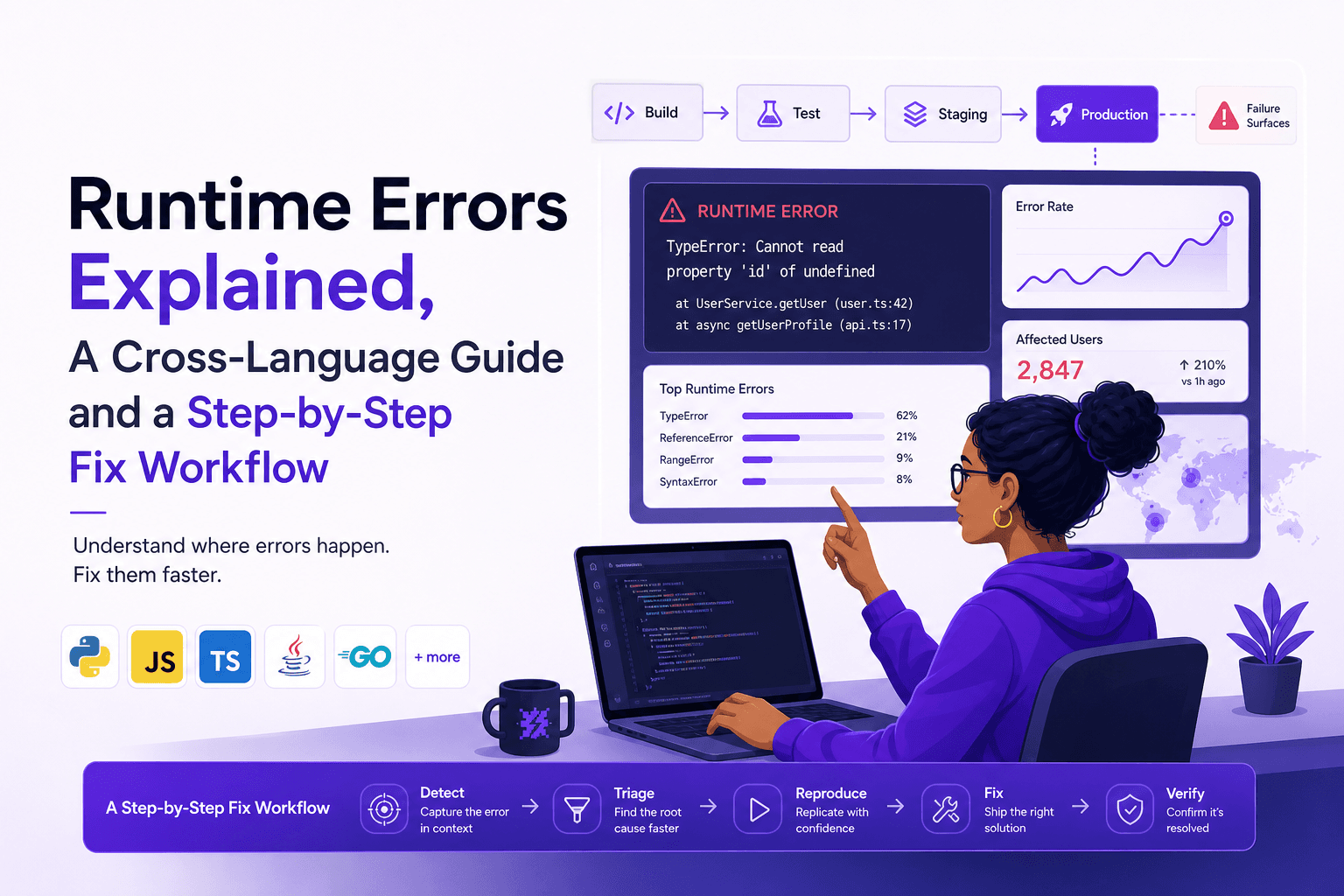
Runtime Errors Explained, A Cross-Language Guide and a Step-by-Step Fix Workflow
Learn what runtime errors are, how they differ from compile-time issues, and a repeatable workflow to reproduce, diagnose, fix, and verify them.