
How to Replay User Sessions, A Step-by-Step Workflow From User Report to Root Cause
How to replay user sessions effectively comes down to a repeatable workflow: identify the right session, play it back with intent, extract evidence, and share it safely so engineering can reproduce the issue.
- Use a consistent “find, replay, verify, document” workflow so session replay produces reproducible bug evidence, not vague anecdotes.
- During playback, prioritize high-signal moments (navigation changes, form submits, errors, network failures) and write down timestamps plus hypotheses.
- Privacy-safe replay requires masking inputs, strict access control, and retention rules before sessions reach broad audiences.
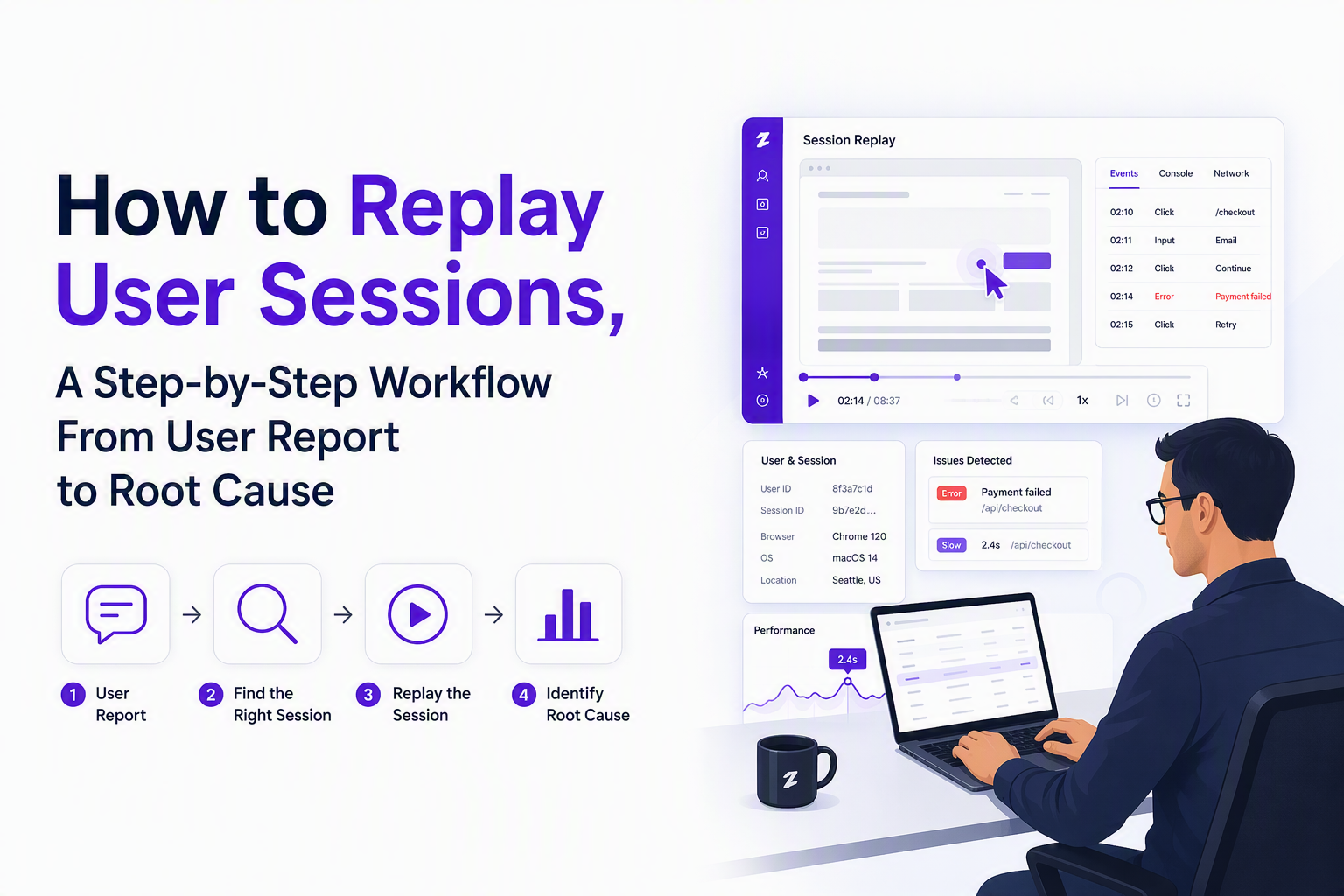
What User Session Replay Shows and Why Teams Use It
User session replay is most useful when it captures enough interaction context to answer “what happened right before the bug” and “what did the app do in response.”
What a replay typically contains (and what it should be paired with)
- User interactions: clicks/taps, scrolls, page navigation, focus/blur events, form submits.
- Timing context: relative timing between actions, page loads, and delays.
- Environment context: browser, OS, device type, viewport, and release/build identifier (if your stack exposes it).
- Technical breadcrumbs: console errors and network request metadata when your setup supports it.
A replay alone often answers the “what” but not always the “why,” so teams get the best outcomes when replays are reviewed alongside logs, error traces, and failing request details. In our experience working with support and engineering teams, the fastest triage happens when the replay is treated like a timeline of evidence rather than a video to watch end-to-end.
Common failure modes session replay resolves (with concrete outcomes)
- UI state bugs: the UI shows success but the request failed; the replay reveals the exact action and subsequent state mismatch.
- UX “it doesn’t work” reports: dead clicks, disabled buttons, validation blocks; the replay shows the precise element and sequence.
- Environment-specific issues: mobile viewport layout breaks; replay plus viewport and device context makes it reproducible.
How to Replay User Sessions From Identifier to Investigation
How to replay user sessions from a real incident starts with narrowing the search to a single session using identifiers you can trust: time window, user ID, URL, and error signals.
Step 1: Collect the minimum “session locator” data (a checklist)
Before you open any replay tool, collect this minimum set so you are not guessing:
- Time window: “between 10:05 and 10:20 UTC” beats “this morning.”
- User identifier: user ID, account ID, hashed email, or an internal support ticket ID mapped to a user.
- Surface area: page URL (or route) where the issue occurred.
- Symptom signal: screenshot, error message text, HTTP status (like 401/403/500), or a frontend exception name.
If you only have “checkout failed,” start by asking support for the approximate timestamp and the last successful step. That one detail typically cuts the search space from hundreds of recorded sessions to a handful.
Step 2: Find the right session (a practical query recipe)
Use this order because it tends to reduce false matches quickly:
- Filter by time window (start broad, then tighten).
- Filter by user identifier (or account/workspace if user IDs are missing).
- Filter by URL/route (checkout, settings, onboarding step).
- Filter by error markers (sessions with console errors, failed requests, or rage clicks).
We initially assumed URL filtering was the fastest way to locate the session, but after running a few internal audits the pattern was clear: “time window + user ID” finds the correct replay more reliably, then URL pinpoints the moment of failure.
Step 3: Replay with intent (the 7-minute playback loop)
Instead of watching a 12-minute session from the beginning, use a loop that produces notes engineering can act on:
- Jump to the likely failure window (based on timestamp or last action).
- Watch 60 to 120 seconds leading into the event to capture the setup state.
- Pause on the trigger action (click “Confirm,” “Save,” “Pay,” etc.).
- Observe app response: UI change, spinner, toast, navigation, validation message.
- Note technical signals: failed request status, console error text, unusual latency.
- Rewatch the same 30 seconds once and write your hypothesis.
Output you want: a short reproduction narrative with timestamps (for example: “02:14 user taps Confirm order, 02:15 spinner persists, 02:16 error toast appears, failing POST /api/checkout returns 500”).
How to Analyze Replays for Faster Bug Triage and Better Decisions
How to replay user sessions for debugging becomes significantly faster when you apply a consistent triage framework that moves from symptom to root cause using observable signals.
The Replay Triage Matrix (symptom → likely cause → next check)
| Replay symptom | Likely cause | What to check next |
|---|---|---|
| Dead click (clicks but nothing changes) | Element disabled, overlay intercept, JS handler not bound | DOM state at click, console errors, route changes |
| Rage clicks (repeated clicking same element) | Latency, unclear affordance, blocked submit, missing feedback | Network timing around click, loading indicators, validation UI |
| Form submit loops or resets | Validation mismatch, state reset, navigation interruption | Client-side validation messages, request payload metadata |
| Sudden navigation away after action | Auth redirect, crash, route guard | HTTP 401/403, token refresh calls, console exception name |
| Error toast after action | API failure, unhandled exception, server validation error | Failing request status and response shape, correlation IDs |
Turn observations into an actionable bug report (a template)
Session replay only speeds fixes if the output is reproducible. Use this structure:
- Title: concise and specific (“Checkout submit fails on mobile Chrome”).
- Repro steps: 3 to 7 steps written from the user’s actions.
- Expected vs actual: one sentence each.
- Evidence timestamps: “01:42 click Save, 01:43 spinner, 01:47 error toast.”
- Environment: browser, OS, device/viewport, release/build if known.
- Technical signal: failing endpoint, status code, console error text.
What surprised our team was how often the “expected vs actual” line prevented weeks of back-and-forth: when you pull it directly from the replay evidence, ambiguity drops fast and prioritization meetings get shorter.
Decide what happens next (triage outcomes)
- Fix now: reproducible, clear owner, and user impact is obvious in the replay.
- Needs more data: replay shows symptom but missing backend context; add logs, traces, or correlation IDs.
- Not a bug: replay reveals intended behavior; capture the moment and hand it to UX or support for messaging.
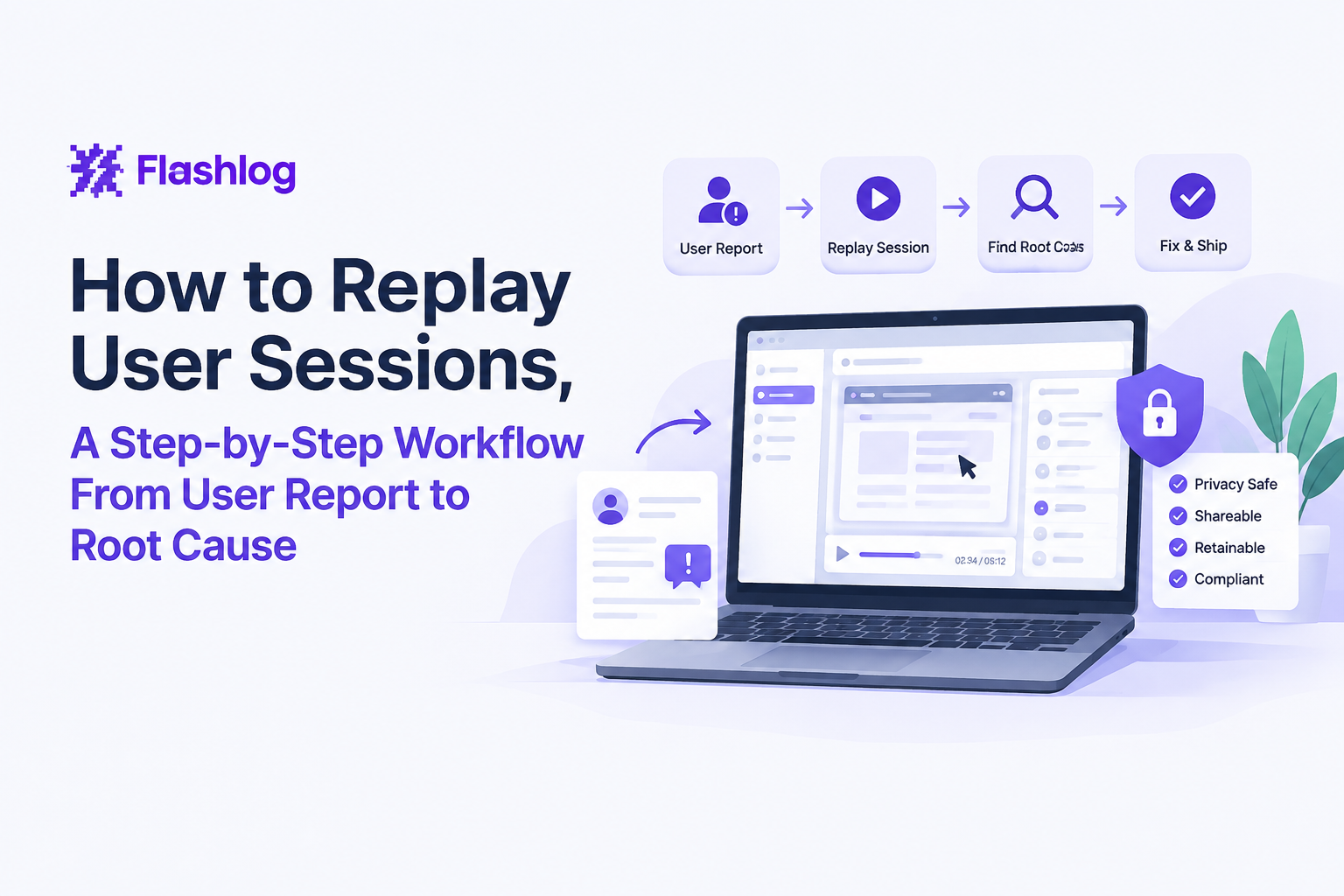
How to Replay Sessions Safely With Privacy Controls
How to replay user sessions safely requires implementing privacy controls before broad access, because replays can unintentionally expose sensitive inputs and personal data.
A practical privacy checklist (do this before sharing replays)
- Mask sensitive inputs by default: passwords, tokens, payment fields, government IDs, and free-text fields likely to contain PII.
- Redact on capture, not on view: if you only hide in the UI, the raw data may still exist in storage.
- Limit access by role: support may need journey context; engineering may need network metadata; not everyone needs everything.
- Set retention windows: keep only what you need for debugging and compliance (choose a policy and enforce it).
- Disclose appropriately: update privacy policy and consent flows where required in your jurisdiction.
For general guidance on privacy principles and obligations, teams often align policies with well-known regulatory frameworks like GDPR; the official regulation text is available at GDPR (EU 2016/679).
Safe sharing rules that prevent accidental exposure
- Share links, not downloads so access can be revoked.
- Time-box access for incident response channels.
- Copy only what matters: timestamps, endpoints, error strings, and environment details.
- Keep replays out of public tickets unless you are certain they are scrubbed and permissioned.
If your team is new to these controls, it helps to document a simple internal “session replay workflow” that defines who can view what and when; this is where a dedicated session replay workflow write-up becomes a practical asset rather than a compliance afterthought.
| Artifact | Best for | Risk level | Share safely by |
|---|---|---|---|
| Replay link (permissioned) | Understanding user journey | Medium | Role-based access + expiration |
| Timestamped notes | Fast engineering handoff | Low | Ticket comment with environment + steps |
| Network error summary | Backend debugging | Medium | Redact payloads, include status/timing only |
| Screenshot of UI state | UX review | Medium | Blur PII, avoid free-text fields |
FAQ
If you have the workflow above in place and want fewer “can you tell us what you clicked” follow-ups, Flash Log adds AI-powered automatic bug capture and classification, including capturing bugs even when users do not report them, so teams can move from session evidence to reproduction-ready issues faster.
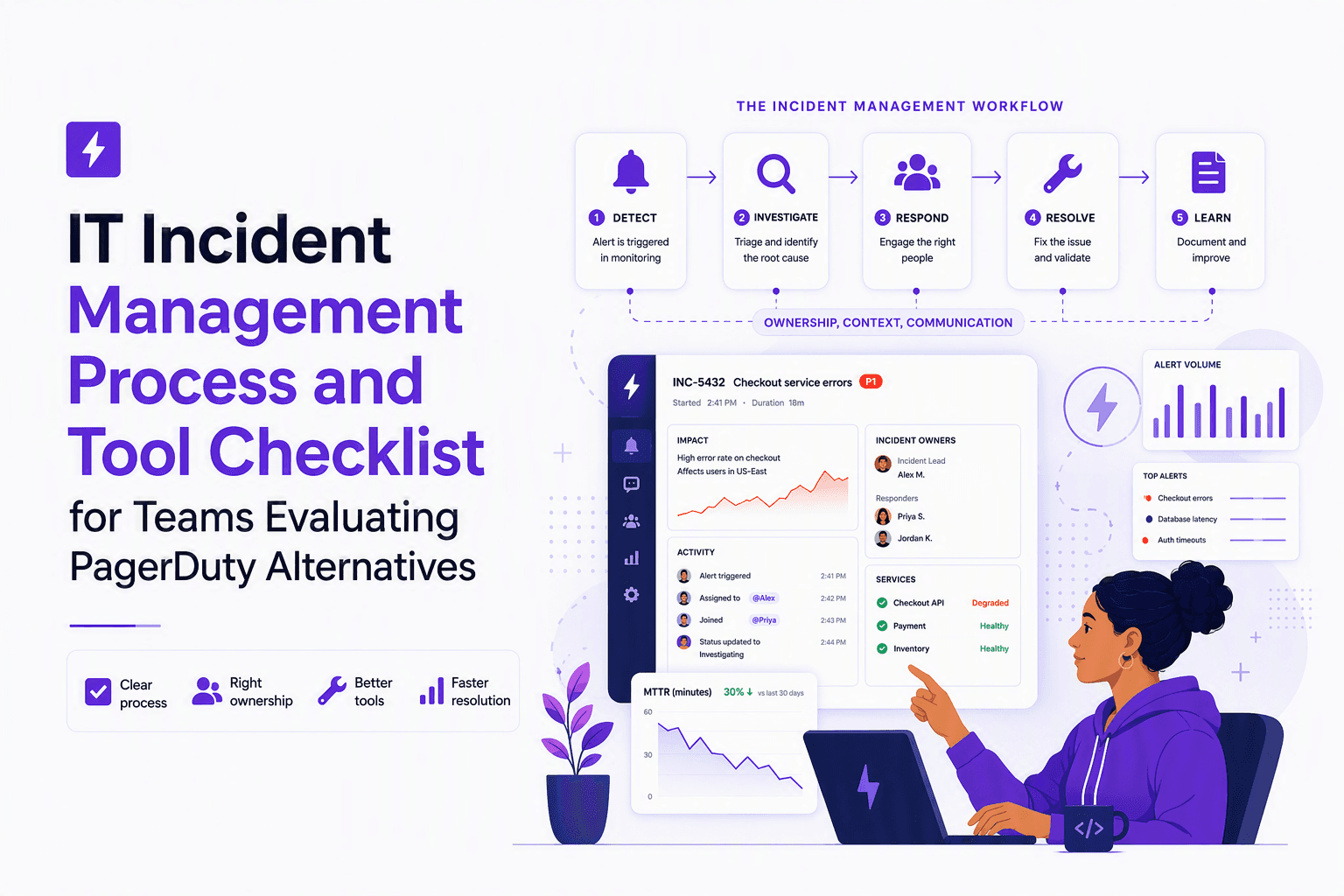
IT Incident Management Process and Tool Checklist for Teams Evaluating PagerDuty Alternatives
Build an it incident management process that maps each stage to tool requirements, major-incident roles, and integrations for PagerDuty-alternative evaluations.
Alert Triage for On-Call Teams, A Practical Framework For Reducing Noise And Escalations
Learn alert triage methods for on-call teams to reduce noise, improve escalation decisions, and build faster incident response workflows.
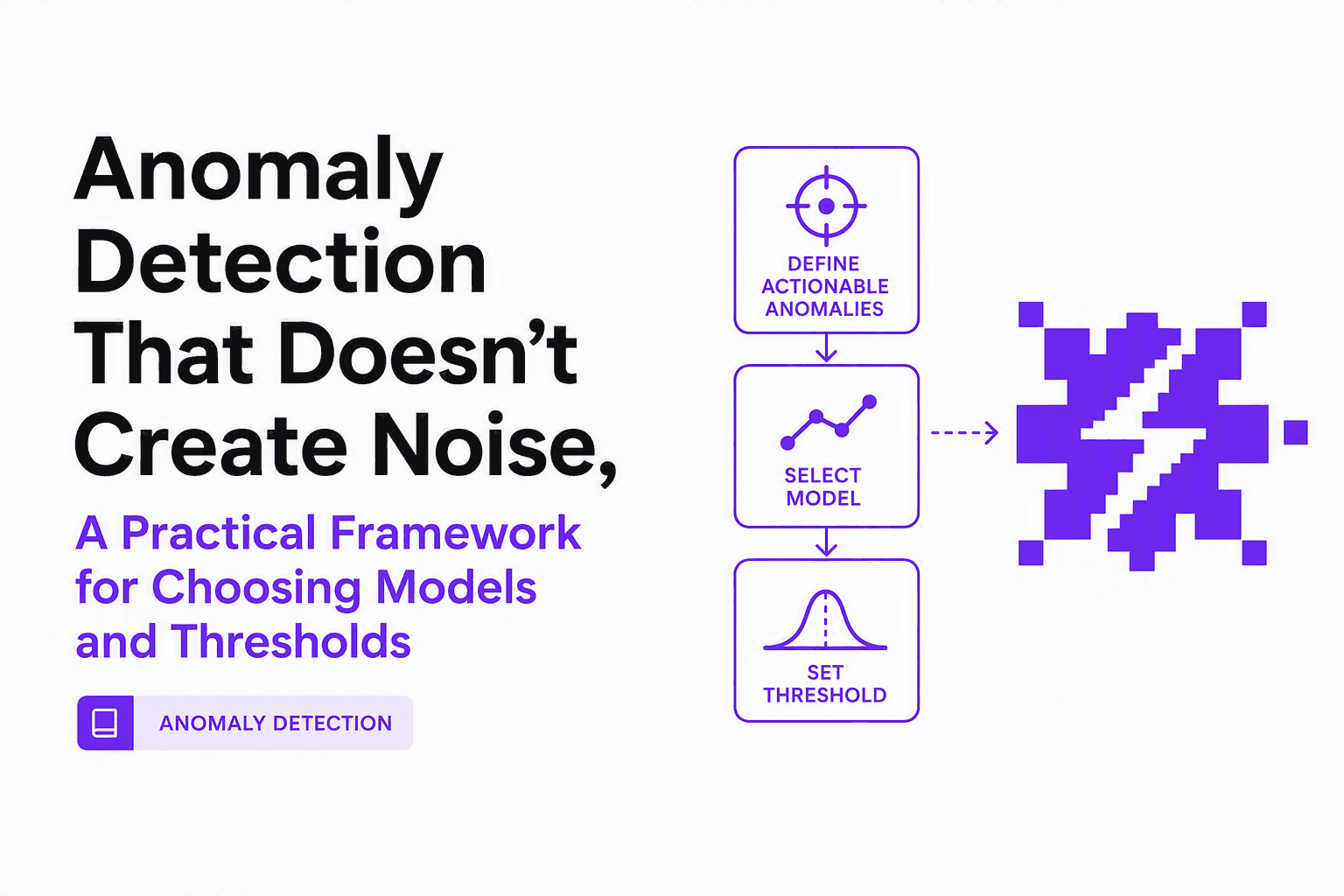
Anomaly Detection That Doesn’t Create Noise, A Practical Framework for Choosing Models and Thresholds
Design anomaly detection that reduces noise: model selection by data type, thresholding without alert fatigue, and evaluation without labels.