
User Session Replay Explained, What It Is, How It Works, and When You Need It
User session replay helps teams see what actually happened in a user’s journey when something breaks or feels confusing, without relying on guesswork, screenshots, or “it didn’t work” tickets.
- User session replay is not video: it reconstructs sessions from captured events, which changes what “accuracy” means and how you evaluate tools.
- The fastest value comes from pairing replay with technical context (errors, failing requests, environment) so bugs become reproducible, not just visible.
- You should only implement session replay when you can answer three questions: what you’ll use it for, who can access it, and how you’ll protect sensitive data.
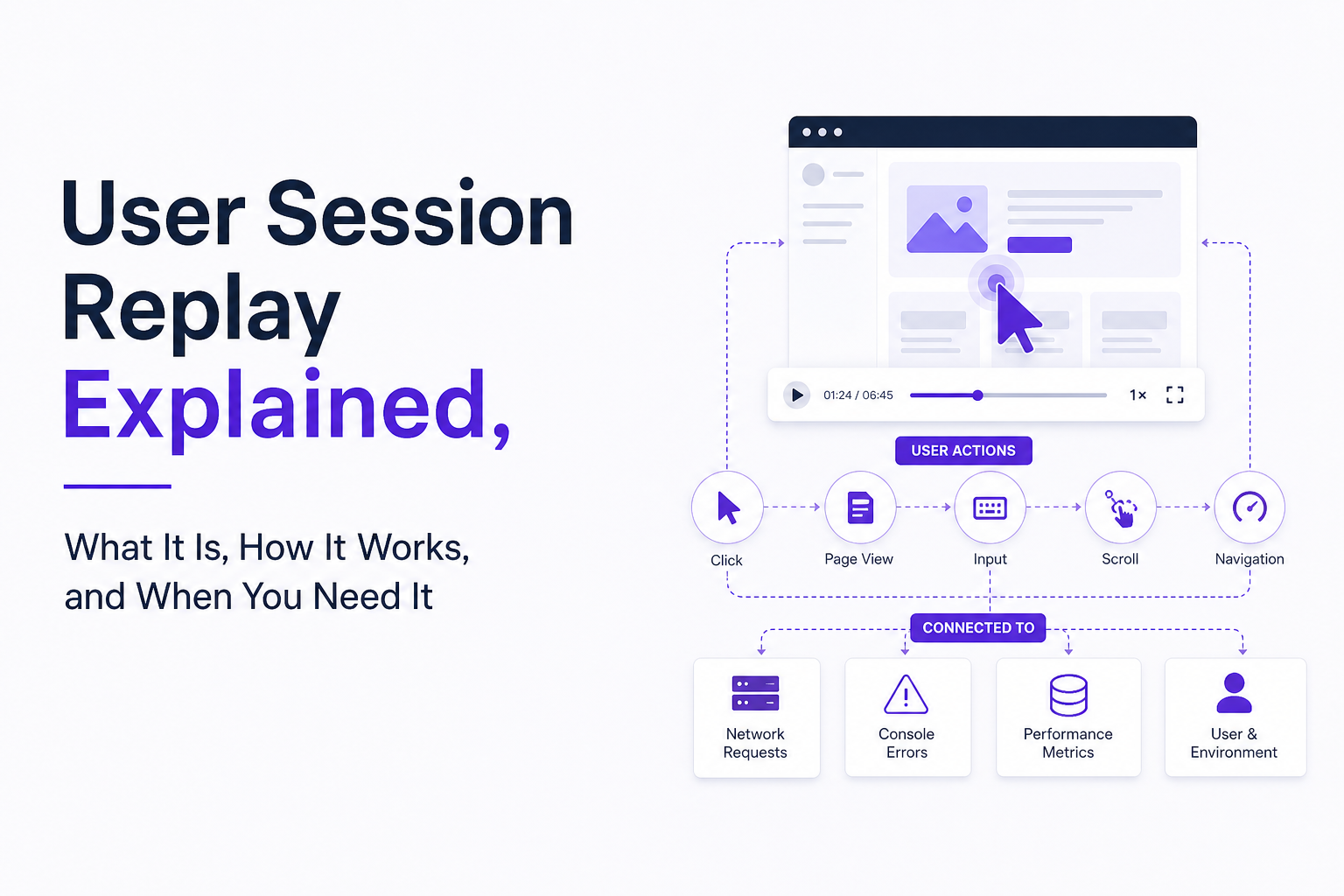
What User Session Replay Is and What It Is Not
Definition: user session replay is a way to reconstruct a real user’s interaction with your web app by capturing client-side events (clicks, inputs, navigation, DOM changes) and replaying them later in a visual timeline.
What it is (in practical terms)
- A reproducibility aid: it shows the path into an issue (the pages, actions, and timing) so engineering can recreate conditions faster.
- A behavior debugger: it reveals friction patterns you cannot infer from aggregate analytics, like repeated clicks, hesitation, or form rework.
- A support accelerant: it reduces back-and-forth by letting support and product see what the user saw.
What it is not (and why the distinction matters)
- Not product analytics: analytics tells you what happened in aggregate (funnels, cohorts). Replay tells you how it happened in a specific session. If your question is “Which step drops off most?”, start with analytics. If it’s “Why did this user drop here?”, replay is better.
- Not logs/APM: logs and APM explain backend behavior and performance, but they rarely show the user’s exact interaction sequence that led to a failure. Replay fills that behavioral gap.
- Not screen recording: most tools do not store a pixel-perfect video. They rebuild the UI from events, which is why privacy controls and masking are central, not optional.
A quick litmus test
If you often ask users “Can you send a screen recording?” or ask support “What exactly did they click before it failed?”, you’re already feeling the core pain that user session replay targets.
How User Session Replay Works Under the Hood
Understanding the mechanics helps you evaluate quality. Two replays can look similar in a demo but behave very differently when you need to debug a real incident.
Step 1: Event capture (what gets collected)
Most implementations capture a mix of:
- User events: clicks, taps, scrolls, keypresses, focus changes.
- Navigation and page state: URL changes, route transitions in SPAs, viewport size.
- DOM mutations: changes to the page structure so the UI can be reconstructed over time.
- Optional technical signals: console errors, network requests, resource timing, and crashes (varies by tool).
Step 2: DOM reconstruction (why it’s not “video”)
Instead of storing frames, the system replays a sequence of state changes. That means:
- A replay can be accurate in interaction flow but not pixel-identical if fonts, third-party widgets, or dynamic content behave differently at playback.
- Masking can intentionally hide text inputs, which is good for privacy but changes what you see.
Step 3: Timeline stitching (how debugging becomes faster)
The best replays are searchable and time-aligned with technical events. In our experience, the “aha” moment happens when the replay timeline shows the user action and the adjacent failure signal (a frontend exception or a failing request) in the same view, because you stop guessing which click triggered which error.
What “high quality replay” really means
Use this checklist when evaluating accuracy:
- Deterministic playback: the same session replays the same way every time.
- SPA support: route changes and virtual DOM updates are captured correctly.
- Input fidelity with masking: you can see that an input happened (and validation states), without storing sensitive values.
- Time sync: events, errors, and requests share a consistent clock so you can reason about causality.
The 5 Most Common Problems User Session Replay Solves
User session replay is most valuable when it turns a vague symptom into a concrete sequence. Below are five problems, each with a “what to look for” pattern you can operationalize.
1) Reproducing bugs without interrogating users
Problem: tickets arrive as “checkout broken” or “save button doesn’t work.” Consequence: engineers spend cycles trying to recreate unknown steps across unknown devices.
Replay pattern to look for:
- Last meaningful actions before failure (for example: “applied coupon” then “clicked Confirm”).
- Environment context (browser, OS, device, viewport) when the issue occurs.
- Nearby request failures (for example: POST /api/checkout returning 500).
When user session replay is paired with request and environment context, it stops being “watching a session” and becomes a reproducible bug report. This is the idea behind tools like Flash Log, which focuses on capturing the user journey plus the failing request and environment around an issue so engineering can start from evidence instead of follow-up questions.
2) Diagnosing UX friction you cannot see in funnels
Problem: funnels show a drop at “Billing details,” but you do not know why. Consequence: teams ship speculative UI tweaks and wait weeks for results.
Replay pattern to look for:
- Hesitation clusters: long pauses after a field gains focus.
- Form rework: users repeatedly deleting and retyping the same field.
- UI confusion: scrolling up and down to find a hidden requirement.
To make this actionable, tag and sample sessions by segment: new users vs returning, mobile vs desktop, and top traffic sources. You do not need to watch hundreds of sessions. You need a consistent sampling rule (for example: 20 sessions per segment per week) so you can compare patterns over time.
3) Finding rage clicks and dead elements
Problem: users click repeatedly because something looks clickable but is not responding. Consequence: frustration, churn, and noisy support tickets.
Replay pattern to look for:
- 3+ clicks on the same element within 2 to 5 seconds.
- Clicks followed by no navigation, no network request, and no UI state change.
- Clicks clustered around loading spinners or disabled buttons.
Turn this into a weekly workflow: export the top 10 rage-click elements, then triage by impact (sessions affected) and fix cost (CSS pointer events, disabled states, missing handlers).
4) Understanding drop-offs on critical flows
Problem: users abandon onboarding, trial activation, or checkout. Consequence: revenue impact with unclear root causes.
Replay pattern to look for:
- Users hitting an error state and backtracking (multiple back navigations).
- Repeated validation failures on the same field.
- Mobile-specific issues: keyboard covering CTAs, layout shifts, or tiny tap targets.
We initially assumed most drop-offs were “pricing objections,” but a replay review of failed trials often shows mechanical blockers like a hidden required field or a mobile layout issue. That’s a different fix, and it’s usually faster.
5) Reducing support time per ticket
Problem: support needs steps, screenshots, and device info to route a ticket. Consequence: longer resolution times and frustrated customers.
Replay pattern to look for:
- Session-linked tickets where support can answer “what happened” in under 2 minutes.
- Clear reproduction steps that can be pasted into an engineering issue.
- Evidence attached: last actions, timestamps, and relevant errors.
If you want a concrete starting point for operationalizing this, map your support macros to replay: “billing failed,” “cannot invite teammate,” “login loop.” Then define what evidence support should attach from a session before escalation.

A Starter Framework to Decide If You Need Session Replay
Session replay is easy to buy and easy to misuse. The decision should be based on whether it reduces time-to-clarity on your highest-cost problems.
Step 1: Score your current “time-to-reproduce”
Track this for 2 weeks across your top 10 user-reported issues:
- TTR (time to reproduce): minutes from ticket created to a developer reproducing locally or in staging.
- Clarification loops: number of back-and-forth messages with support or the user.
Rule of thumb: if your median TTR is over 30 to 60 minutes for user-facing bugs, user session replay is often worth piloting because it targets that exact gap.
Step 2: Check if your issues are “behavior-dependent”
Replay helps most when bugs depend on sequence and state. Use this checklist:
- Does the bug depend on a specific navigation path?
- Does it appear only on certain devices, viewports, or browsers?
- Does it involve async UI, race conditions, or multi-step forms?
- Do users describe it inconsistently (“sometimes”)?
If you answered “yes” to 2 or more, replay usually beats adding more logging alone.
Step 3: Define the minimum viable use cases (avoid replay sprawl)
Pick 1 to 2 use cases for the first month:
- Bug reproduction for P0 and P1 issues.
- Checkout or onboarding friction review.
- Support escalation evidence bundle.
Set a simple success metric: “Reduce median TTR by 25%” or “Cut clarification loops from 3 to 1.” If you cannot define a metric, you are likely to accumulate recordings without changing outcomes.
Step 4: Decide who needs access and what “good” looks like
Access should match responsibilities:
- Engineering: needs error and request adjacency plus environment details.
- Support: needs a safe view with redaction by default.
- Product/design: needs sampling, tags, and friction patterns, not raw sensitive inputs.
Privacy, Security, and Compliance Basics You Must Get Right
Privacy is not a checkbox for user session replay. If you implement it poorly, you can capture sensitive inputs you never intended to store.
Masking and redaction (what should be hidden by default)
At minimum, treat these as sensitive:
- Passwords, tokens, API keys, and authentication codes.
- Payment data and bank details.
- Government IDs and health-related fields (depending on your domain).
- Free-text fields that can contain anything (support messages, notes).
Prefer systems that support both input masking (do not capture keystrokes or values) and field-level redaction (strip specific keys before storage). Also verify that masking applies to DOM snapshots, not just to the replay UI.
Consent and notice (what to align with legal)
Requirements vary by region and product, so align with counsel. Practically, you should be able to:
- Disable capture on specific pages (for example: billing portal, admin screens).
- Respect user opt-out signals where applicable.
- Document what is captured and why, in your privacy policy.
Retention and access controls (how to reduce risk)
Two controls reduce exposure quickly:
- Short retention by default: keep only what you need for debugging and UX review. If you are unsure, start with 14 to 30 days and adjust. For a deeper guide, see data retention planning for session replay.
- Role-based access: restrict who can view full session details, and audit access for sensitive investigations.
After running a privacy review on replay deployments, the pattern was clear: the highest-risk leaks come from “unknown unknowns” like free-text fields and third-party widgets. Build a page allowlist or strong default masking before you scale capture broadly.
What to Look for in a User Session Replay Setup
Buying or implementing user session replay is less about shiny playback and more about whether it shortens the path from “something went wrong” to “here’s the fix.” Use the criteria below to evaluate tools and your own setup.
Core capability checklist (minimum bar)
- Searchability: filter by URL, device, browser, errors, and time range.
- Session quality: stable playback in SPAs and dynamic UIs.
- Performance impact: lightweight capture that does not noticeably slow page loads.
- Privacy controls: masking, redaction, page exclusion, and access controls.
Debugging context checklist (what separates “watching” from “fixing”)
- Error adjacency: frontend exceptions aligned to the moment they occur.
- Network trail: ability to see failing requests (status, endpoint, timing) near the triggering action.
- Environment details: browser, OS, device, viewport, release version, and network conditions.
If you want a deeper technical breakdown of what gets captured and what should be masked, this explainer on session replay technology is a useful companion.
Operational workflow checklist (so it doesn’t become shelfware)
- Triage loop: who reviews replays, how often, and what qualifies as “actionable.”
- Issue handoff: a consistent template for attaching replay evidence to tickets.
- Sampling strategy: how many sessions you review per week and from which segments.
For teams that struggle to turn sessions into shipped fixes, a documented session replay workflow is often the difference between insight and impact. If you are just getting started, you can also reference this web session replay tutorial for a practical engineering-first setup.
| Question | If the answer is “Yes” | What to implement first |
|---|---|---|
| Do we spend 30+ minutes reproducing common user-facing bugs? | Replay will likely reduce time-to-reproduce. | Capture sessions for erroring users and attach replay links to P0/P1 issues. |
| Do we see drop-offs but can’t explain why? | Replay can reveal friction patterns funnels miss. | Sample 20 sessions per segment weekly on the critical flow (onboarding/checkout). |
| Are we concerned about sensitive data exposure? | You need strong masking, redaction, and retention controls. | Start with strict default masking, page exclusions, and 14 to 30 day retention. |
| Do support escalations lack steps and device details? | Replay can reduce clarification loops. | Create a support checklist: last actions, timestamps, environment, and error evidence. |
FAQ
If your biggest bottleneck is turning “something broke” into a reproducible sequence, Flash Log is built around capturing the journey, failing request, environment, and privacy-masked replay context automatically so engineering can debug without chasing users for steps. If you want to explore that workflow, start with a small pilot on one critical flow and measure time-to-reproduce before and after.
Alert Fatigue Explained, A 5-Step Playbook to Cut Noise Without Missing Critical Signals
Reduce alert fatigue with a 5-step playbook, a 60-second self-check, and a scorecard to cut noise without missing critical signals.

Web Session Replay, A Practical Tutorial and Debugging Workflow for Engineering Teams
Learn a practical web session replay workflow to capture context, reproduce bugs, and fix production issues faster with privacy-safe governance.
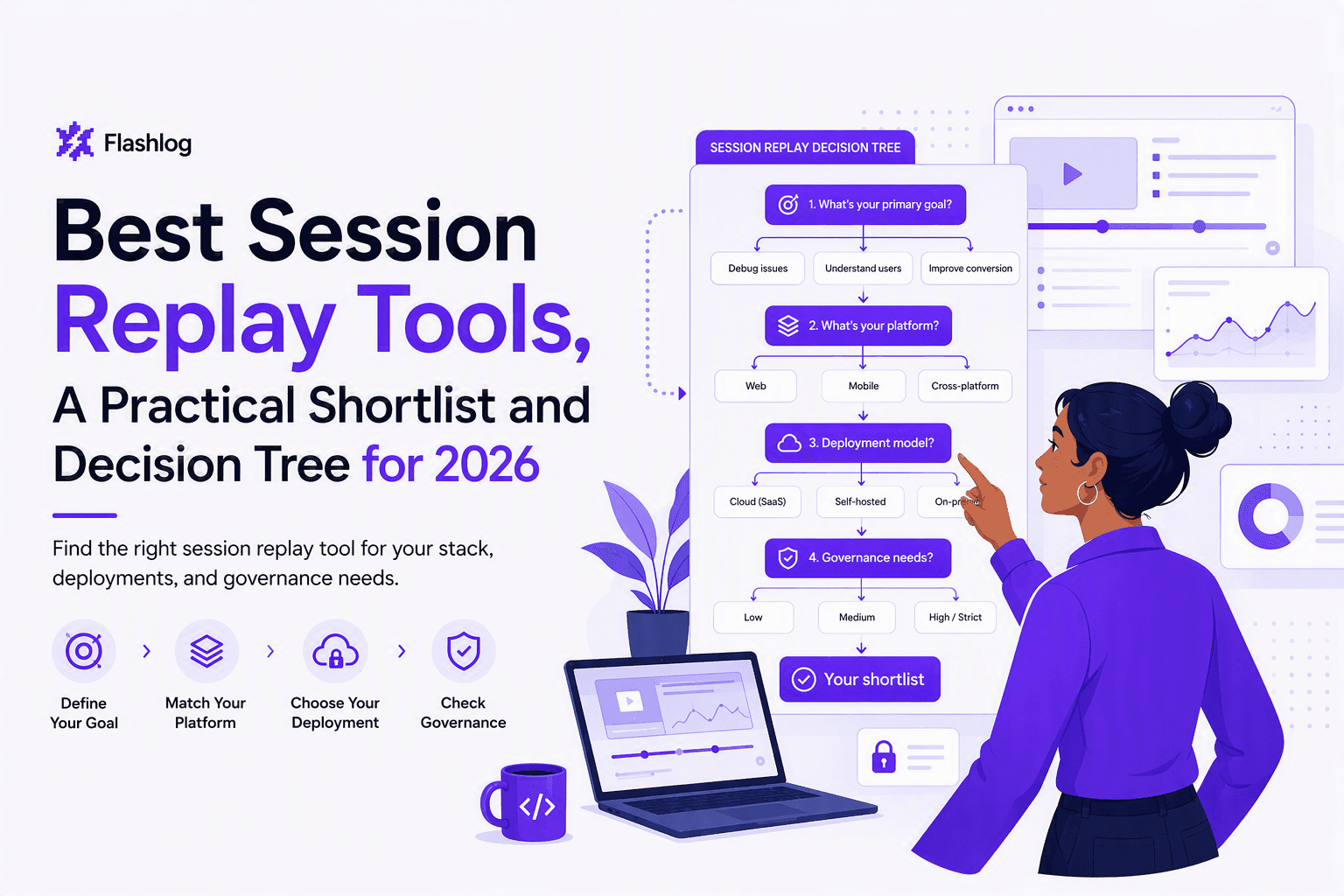
Best Session Replay Tools, A Practical Shortlist and Decision Tree for 2026
A buyer-focused shortlist of best session replay tools for 2026, with a decision tree, selection checklist, cost pitfalls, and a comparison table.