
Website Session Replay For Bug Triage, A Practical Workflow From Symptom To Fix
Website session replay works best for bug triage when you treat it as an evidence pipeline: user actions + failing requests + environment context, packaged so engineering can reproduce the issue without interviewing users.
- Use replay as a triage workflow, not a video: require a linked action trail, network failure context, and environment details before you escalate a bug.
- For checkout drop-offs, isolate whether the failure is UI validation, API 4xx/5xx, or environment-specific behavior by walking the same three checkpoints in every replay.
- Deploy replay with privacy and reliability safeguards: masking defaults, SPA route tracking, CSP planning, and performance checks before you trust the data.
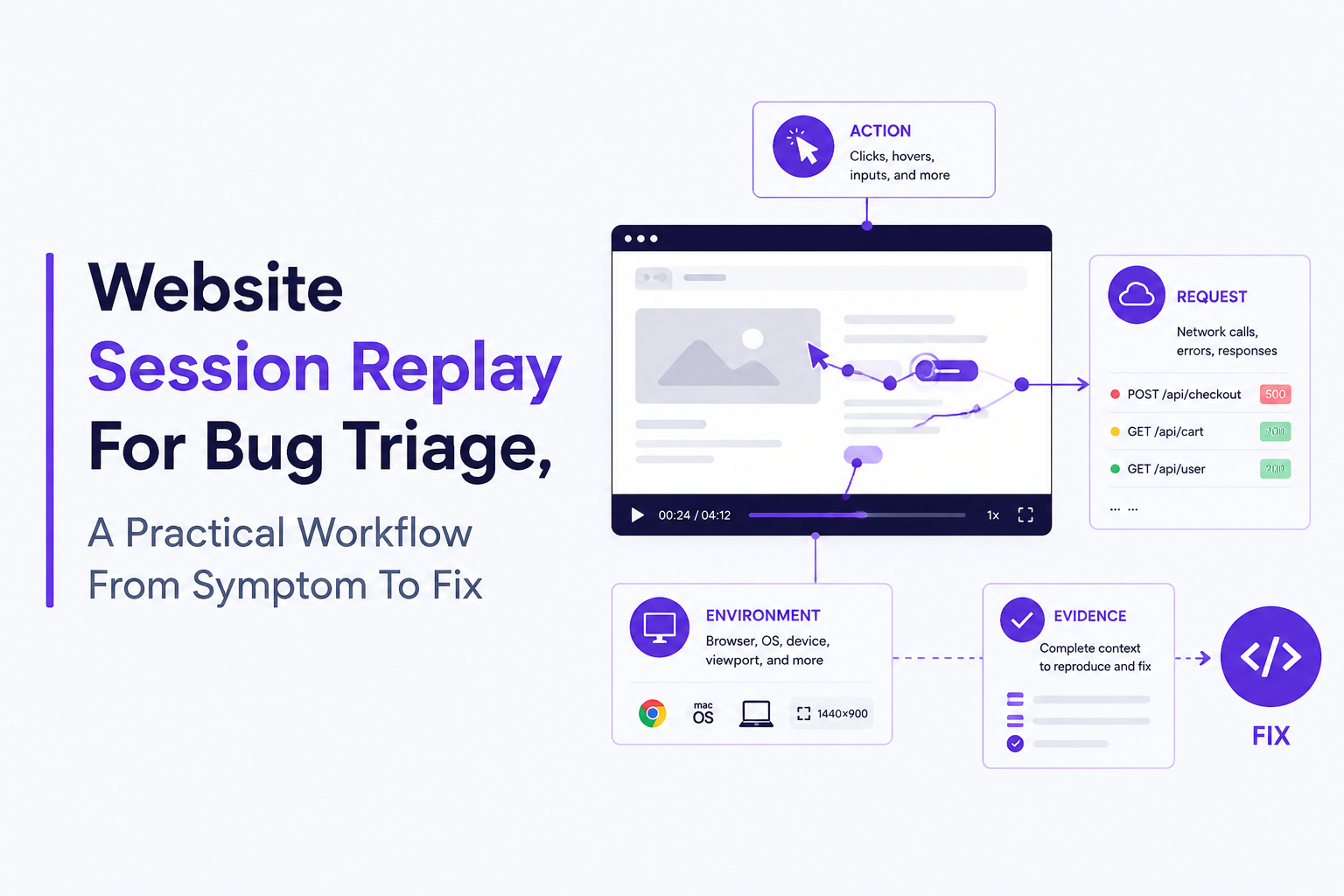
What Website Session Replay Should Capture For Bug Triage
Website session replay becomes actionable for bug triage only when each session includes a reproducible trail: the last meaningful user actions, the related network requests, and the environment where the failure happened.
Use an “Action, Request, Environment” checklist before escalating
In practice, most “replay” implementations capture clicks and scrolls, but stop short of the evidence engineers need. Before filing an issue, we use a strict checklist so support and engineering look at the same signals:
- Action trail: page path, key UI events (click submit, change shipping method), form states (valid or blocked), and the last 3 to 10 steps before the error.
- Request trail: the failing API call (method, URL), response status (4xx vs 5xx), and timing/latency signal near the moment the UI breaks.
- Environment: browser + version, OS, device class, viewport, release/build identifier, and network conditions (at least “online/offline” and any obvious throttling).
Prioritize signals that turn “friction” into a reproducible bug
For triage, the goal is not to watch a full session. The goal is to extract a short, testable hypothesis. These are the replay signals that consistently reduce back-and-forth:
- Error adjacency: show the UI state immediately before and after the failure (the click that triggers it, and what changed next).
- Network correlation: link the request that maps to the user action (for example, “Confirm order” aligned to
POST /api/checkout). - Determinism hints: does it happen on one browser family, one release, one viewport range, or one locale?
- Data hygiene markers: masked inputs where necessary, and enough structure preserved to debug (field names, event types, redaction flags).
Know what replay should not be used for
Website session replay is weak evidence when the root cause is purely server-side and not correlated to a specific request, or when the issue depends on personal data you intentionally do not capture (as you should). In those cases, treat replay as the “how we got here” layer, then pivot to server logs, traces, and feature-flag history.
A Real Website Session Replay Example For Checkout Drop-Off
Website session replay can turn a vague “checkout is broken” report into a concrete fix by following the same three-pass investigation: confirm the failure moment, classify the failure type, then extract reproduction steps with environment.
Symptom: analytics shows drop-off, but support cannot reproduce
Assume you see a spike in checkout abandonment after users click “Confirm order,” but your team cannot reproduce in staging. Your first move is to select 5 to 10 sessions that match the symptom (reached checkout, clicked confirm, did not reach success page) and run a structured pass, not a free-form watch.
Pass 1: find the failure boundary (the last good state)
Scrub directly to the “Confirm order” click and record three facts:
- Last good UI state: was the form valid, totals visible, shipping selected?
- Immediate reaction: loading spinner forever, inline error, page refresh, or navigation abort?
- Time-to-failure: instant (likely client validation) vs after a wait (often network/API).
What surprised our team was how often the “spinner forever” pattern was not a frontend crash at all, but an unhandled non-200 response that never cleared the loading state.
Pass 2: classify the failure type using network context
Next, anchor the replay to the request trail nearest the click:
- If you see 4xx: treat it as validation or auth, and inspect whether the UI surfaced the error message. Many checkout flows accidentally swallow 401/403 and look like “loading.”
- If you see 5xx: treat it as backend instability or release regression. Capture request metadata and correlate to release/build.
- If there is no request: suspect client-side validation, blocked third-party script, CSP issues, or a JavaScript exception before the request fires.
Pass 3: extract a “repro package” engineers can run in minutes
By the end of triage, the bug ticket should include:
- Exact steps: page path into checkout plus last actions (for example: select plan, apply coupon, choose shipping, confirm order).
- Failing request evidence: endpoint, status, and timing.
- Environment: browser/OS/device/viewport plus the release identifier.
- Expected vs actual: “navigates to /success” vs “spinner persists, no error shown.”
In our experience, if you cannot write those four items from the replay, the session is not triage-grade and should not be the basis for a high-priority escalation.
Fix patterns that commonly fall out of this workflow
- Unhandled error state: show a user-facing message and clear loading on non-200 responses.
- Idempotency and retries: double-click or back/forward can cause duplicate submits; add request guards and idempotency keys server-side.
- Environment-specific bug: mobile viewport layout hides required checkbox; replay plus viewport context makes it obvious.
- Release regression: failures cluster by release identifier; roll back or hotfix.
How To Set Up Website Session Replay In HTML Without Privacy Risks
Website session replay can be deployed safely from a simple HTML snippet if you standardize four safeguards: script placement, SPA route tracking, privacy masking defaults, and CSP and performance validation.
1) Script placement that minimizes blind spots
- Load early enough to capture: place the replay bootstrap in
<head>so you do not miss the critical first interaction or error-on-load flows. - Defer heavy work: keep the bootstrap tiny and load the full recorder asynchronously to reduce render impact.
- Tag your release: pass a build or commit identifier if your tool supports it; release context is the fastest way to spot regressions.
2) SPA routing: record navigation that does not reload the page
Single-page apps can look like “one page forever” without explicit route-change capture. Configure route tracking (history API, framework router hooks) so the replay shows the actual page path into the bug, not just a single URL. After running a few audits across React and Vue apps, the pattern was clear: missing route-change events is one of the main reasons replays feel “untrustworthy” to engineers.
3) Privacy-safe defaults: mask first, then unmask selectively
Start from a conservative posture and only unmask what you can justify. A practical approach is:
- Mask all inputs by default (text, email, address), then allowlist specific non-sensitive fields.
- Block known secrets (password, tokens, payment fields) via selectors and key-based redaction.
- Keep structure without content: preserving field names and event types often provides enough debugging context even when values are hidden.
If you need a deeper framework for replay privacy, use sensitive data classification and a documented capture policy before rolling out broadly.
4) CSP, consent, and performance checks before trusting the data
- CSP: validate
script-srcand any required endpoints for upload; avoid “just add unsafe-inline” as a shortcut. - Consent: if you gate analytics, gate replay consistently and document the behavior. A useful reference is a structured consent management approach tailored to replay capture.
- Performance: test with Lighthouse and real-user monitoring. Confirm no layout thrash, no long tasks spikes, and that replay upload does not saturate mobile connections.
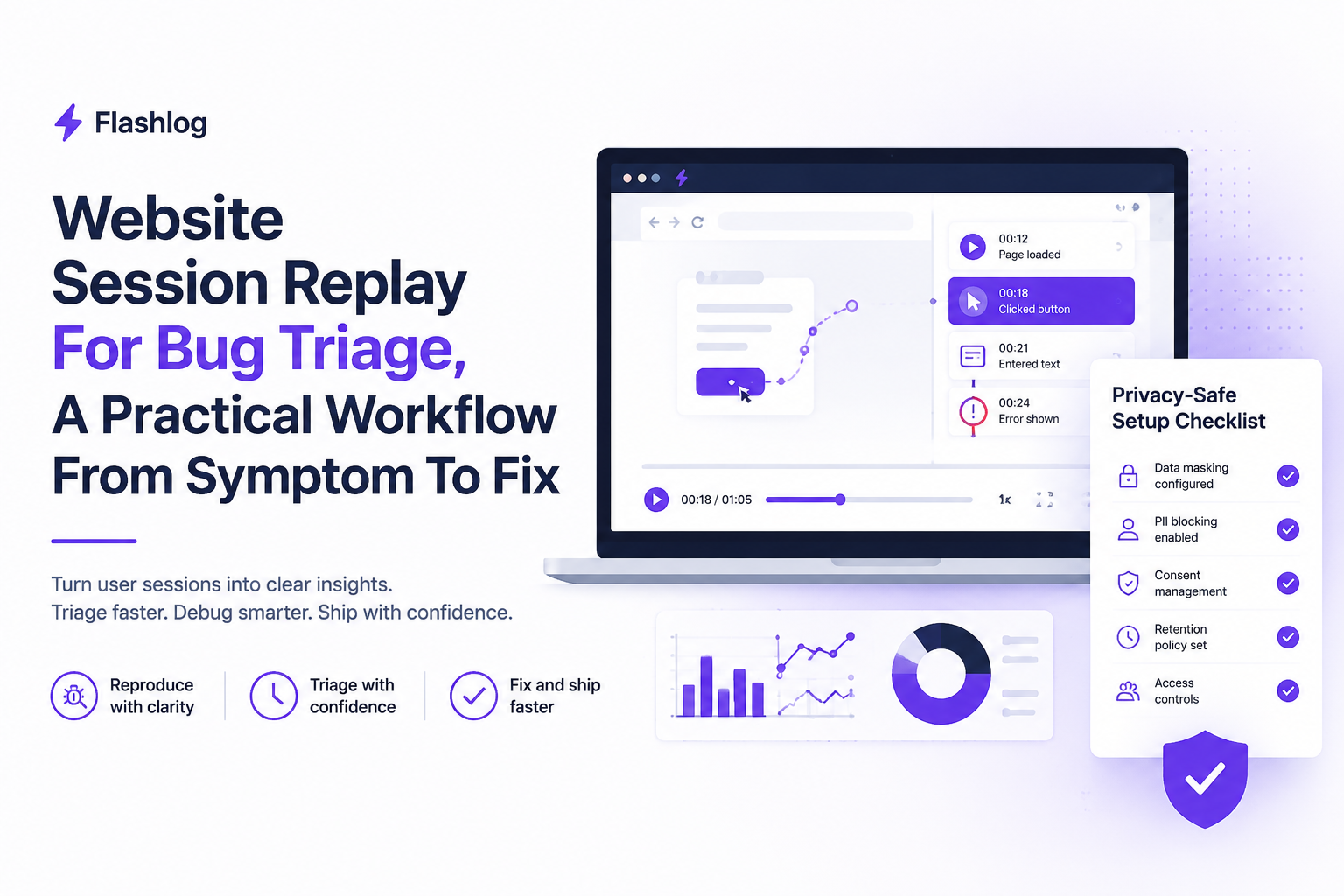
How To Choose Between Free, Open-Source, And Paid Session Replay Tools
Website session replay tool selection should be driven by operational fit: where data must live, how much engineering time you can spend, what retention you need, and whether you must support mobile and SPAs reliably.
Use a decision matrix instead of feature shopping
These criteria are the ones that most strongly predict whether replay becomes a daily debugging tool or shelfware:
- Engineering effort: time to deploy, maintain, and keep compatible with CSP and framework upgrades.
- Data residency and access controls: where recordings are stored, who can access them, audit logs.
- Privacy tooling: masking defaults, allowlist/denylist controls, and redaction guarantees.
- Retention and sampling: can you keep the sessions long enough to investigate intermittent issues?
- Debuggability: whether replay links to console errors, network timelines, and release tags.
- Platform coverage: SPA routing, mobile web, and if needed, native mobile support.
When free or open-source is enough
- Best for: early-stage products, short retention needs, and teams willing to own infra.
- Watch-outs: hosting and storage costs can rise with traffic; privacy controls and governance often require extra work; upgrades may break capture.
When paid tools are worth it
- Best for: teams that need reliable SPAs, governance, longer retention, and consistent evidence quality for engineering.
- Watch-outs: vendor lock-in, data-region constraints, and the need to validate masking behavior with your own test cases.
How Flash Log fits after replay identifies the issue
Once website session replay shows you the failing moment, the next bottleneck is often converting “we saw it” into “we fixed it.” Tools like Flash Log can automate bug capture and classification with AI, including capturing bugs even when users never report them, and packaging the user journey, failing request, environment, and masked replay context so the issue is reproduction-ready for engineers.
| Criteria | Free | Open-source | Paid |
|---|---|---|---|
| Time to first useful replay | Fast, but limited controls | Medium, depends on setup | Fast with stronger defaults |
| Privacy and masking governance | Basic | Configurable, you own it | Typically most complete |
| Data residency options | Often limited | Full control if self-hosted | Varies by vendor and plan |
| Retention and sampling controls | Limited | Depends on storage budget | More flexible |
| Engineering maintenance | Low | High (infra, upgrades) | Low to medium |
| SPA and mobile reliability | Mixed | Mixed, needs tuning | Usually strongest |
FAQ
If you already use website session replay to spot failures but still lose time converting observations into reproducible issues, Flash Log can help by automatically capturing and classifying bugs with AI and packaging the journey, failing request, environment, and masked replay context so engineering can move from triage to fix with less back-and-forth.
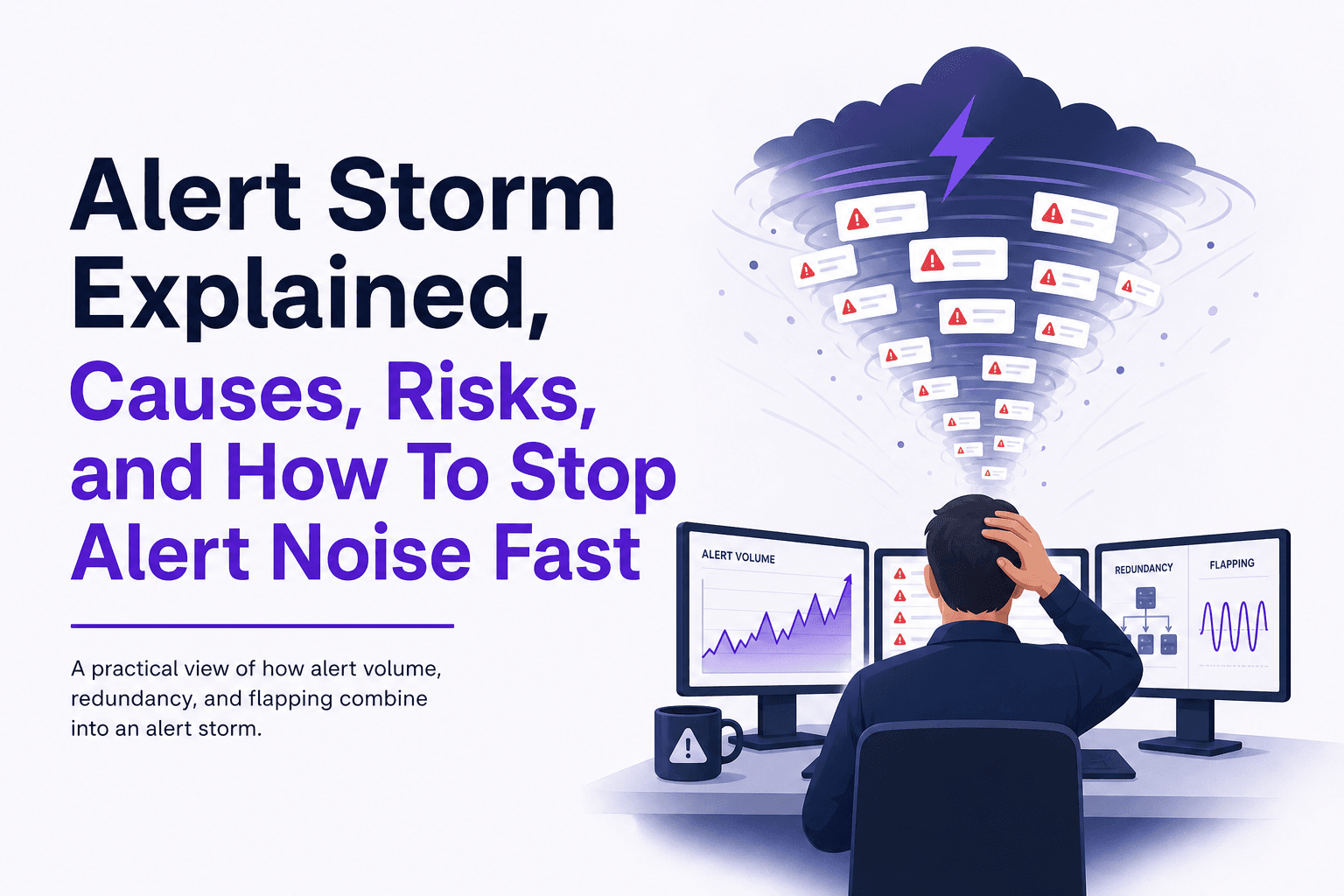
Alert Storm Explained, Causes, Risks, and How To Stop Alert Noise Fast
Learn what an alert storm is, why it happens, and a first-week framework to cut alert noise fast without missing real incidents.
Log Filtering That Actually Reduces Noise, A Practical Framework and Cheat Sheet
A practitioner framework for log filtering that reduces noise without losing forensic signal, plus a cross-tool cheat sheet and validation checklist.
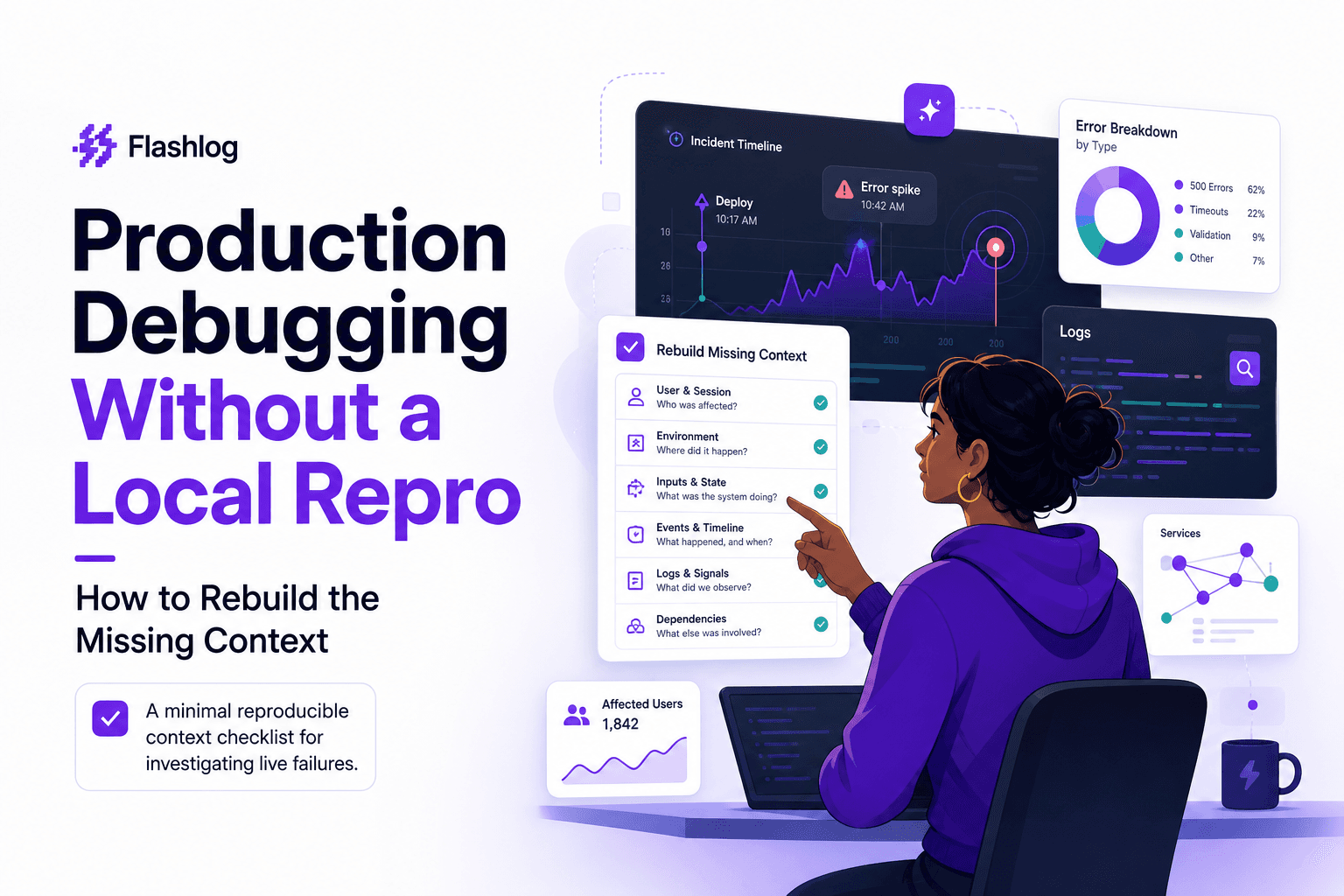
Production Debugging Without a Local Repro - How to Rebuild the Missing Context
Learn a minimal reproducible context framework for production debugging when you can’t reproduce locally, and narrow hypotheses fast.