
Alert Spam Explained and How to Verify It in 60 Seconds
alert spam is any urgent-looking message, call, pop-up, or notification designed to push you into clicking, calling back, or sharing information before you can verify it.
- Use a 60-second workflow: stop, snapshot, verify through a trusted path, then decide to block/report or confirm safely.
- Real alerts rarely demand immediate action via a link, unknown number, or pop-up; spam usually does.
- Close and clean up safely: dismiss the alert, deny permissions, remove unknown profiles/extensions, and turn on filtering.
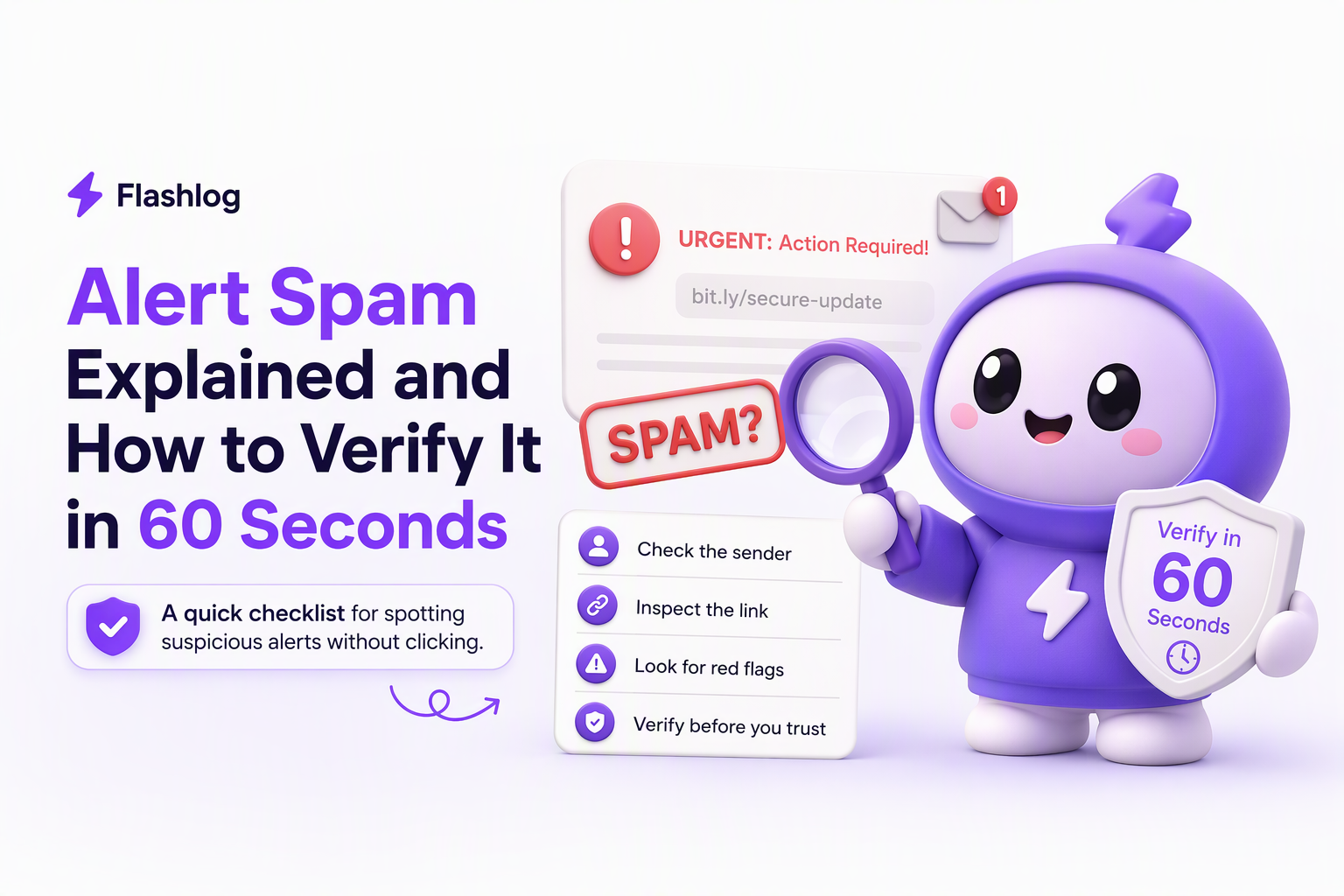
What Alert Spam Is and How It Differs From Real Alerts
Alert spam is recognizable because it prioritizes urgency and action buttons over verifiable context like who sent it, what account it refers to, and how you can confirm it independently.
Plain-English definition you can apply in seconds
In practice, I treat something as alert spam when it tries to hijack my next step: “tap to fix,” “call now,” “approve login,” “your Apple ID is locked,” or “bank fraud detected,” but the message does not give a safe way to verify without using the provided link or number.
A quick real-vs-fake pattern check (use this list)
- Real alerts usually include: the service name you actually use, a partial identifier you can cross-check (last 2 to 4 digits, location, device type), and a path to verify inside the official app or website you already know.
- Spam alerts often include: a shortened URL, random domain, QR code, attachment, “support” phone number, or a pop-up that blocks the page until you click.
- Real alerts rarely: demand immediate payment by gift card/crypto, threaten arrest, or ask for one-time codes (2FA) over text or phone.
Common disguises you should assume are suspicious
- Apple/Google security: “Unusual sign-in. Verify now.”
- Bank fraud: “Transaction declined. Click to unblock.”
- Delivery/tolls: “You owe a small fee. Pay to avoid penalty.”
- Work tools: “Password expires today” sent to a personal phone from an unknown number.
When the message feels like a true emergency but gives you only one fast path to act, treat it as alert noise until proven otherwise.
The 5-Step Workflow to Check If a Message, Number, or Pop-Up Is Spam
A reliable way to beat alert spam is a repeatable 60-second workflow that forces verification through a trusted path instead of the alert itself.
Step 1 (10 seconds): Stop and capture evidence without interacting
- Do not click links, buttons, or “Allow.”
- Take a screenshot (or photo with another device).
- Copy the sender details: phone number, email, and the exact URL shown (do not open it).
Step 2 (15 seconds): Identify what kind of alert it is
- Text/SMS: sender number, link, and phrasing matter most.
- Phone call: caller ID can be spoofed, so treat it as untrusted by default.
- Browser pop-up: often tied to notification permissions or a sketchy site.
- App notification: can be real, but still verify in-app before acting.
Step 3 (20 seconds): Verify via a trusted route (never via the alert)
- For banks and payments: open the official app from your home screen, or type the known website manually.
- For Apple ID/Google: open device settings (not a link) and check security alerts there.
- For delivery/services: open the app you normally use and look for the same status.
- For workplace tools: use the company directory or known IT channel, not the number that called you.
If you need a second opinion on a suspicious URL, use a reputation checker by pasting the domain only (not opening the link), such as Google Safe Browsing.
Step 4 (10 seconds): Decide using a simple decision tree
- Verified in official app/site: follow normal recovery steps there.
- Not verified: assume alert spam, then block/report and delete.
- Unsure but high stakes (money, account access): contact the organization using a known number from a statement, card, or official website you typed yourself.
Step 5 (5 seconds): Reduce future repeats
- Block the number or sender.
- Report spam (carrier or platform options below).
- Remove notification permission from the site/app if it was a pop-up.
This is the same mindset behind good alert management: verify signal through a trusted source, then act once the context checks out.
How to Close a Spam Alert Safely on iPhone, Android, Windows, and Browsers
Safe dismissal of alert spam means closing the interruption without granting permissions, installing anything, or calling numbers provided by the alert.
iPhone (Safari and app notifications)
- Safari pop-up: tap the browser tabs button, close the tab. If a page is stuck, open Settings, Safari, clear history and website data.
- Calendar spam: open Calendar, find the subscribed calendar, remove it in Settings, Calendar, Accounts.
- Notification spam: Settings, Notifications, find the app, disable notifications or set to Deliver Quietly.
Android (Chrome and system prompts)
- Chrome pop-up: close the tab. Then open Chrome Settings, Site settings, Notifications, and remove or block suspicious sites.
- Downloaded file prompt: cancel, then check Downloads and delete unknown files without opening.
- App-level spam: Settings, Apps, Notifications, disable for the offending app; uninstall unknown apps.
Windows (fake antivirus and browser hijacks)
- Fake antivirus pop-up in a browser: do not call. Close the browser window. If it will not close, use Task Manager to end the browser task, then reopen and restore without restoring the problematic page.
- System-looking dialog: check the app name in the window title or Task Manager. Real Windows security alerts come from Windows Security, not random web pages.
Browsers (Chrome, Safari, Edge) notification permission cleanup
- Open browser settings, find Site permissions or Notifications.
- Remove any site you do not recognize.
- Turn off “sites can ask to send notifications” if you never use it.
I have found the fastest win is removing notification permissions from unknown sites, because many “your device is infected” alerts are just browser notification abuse rather than a true infection.
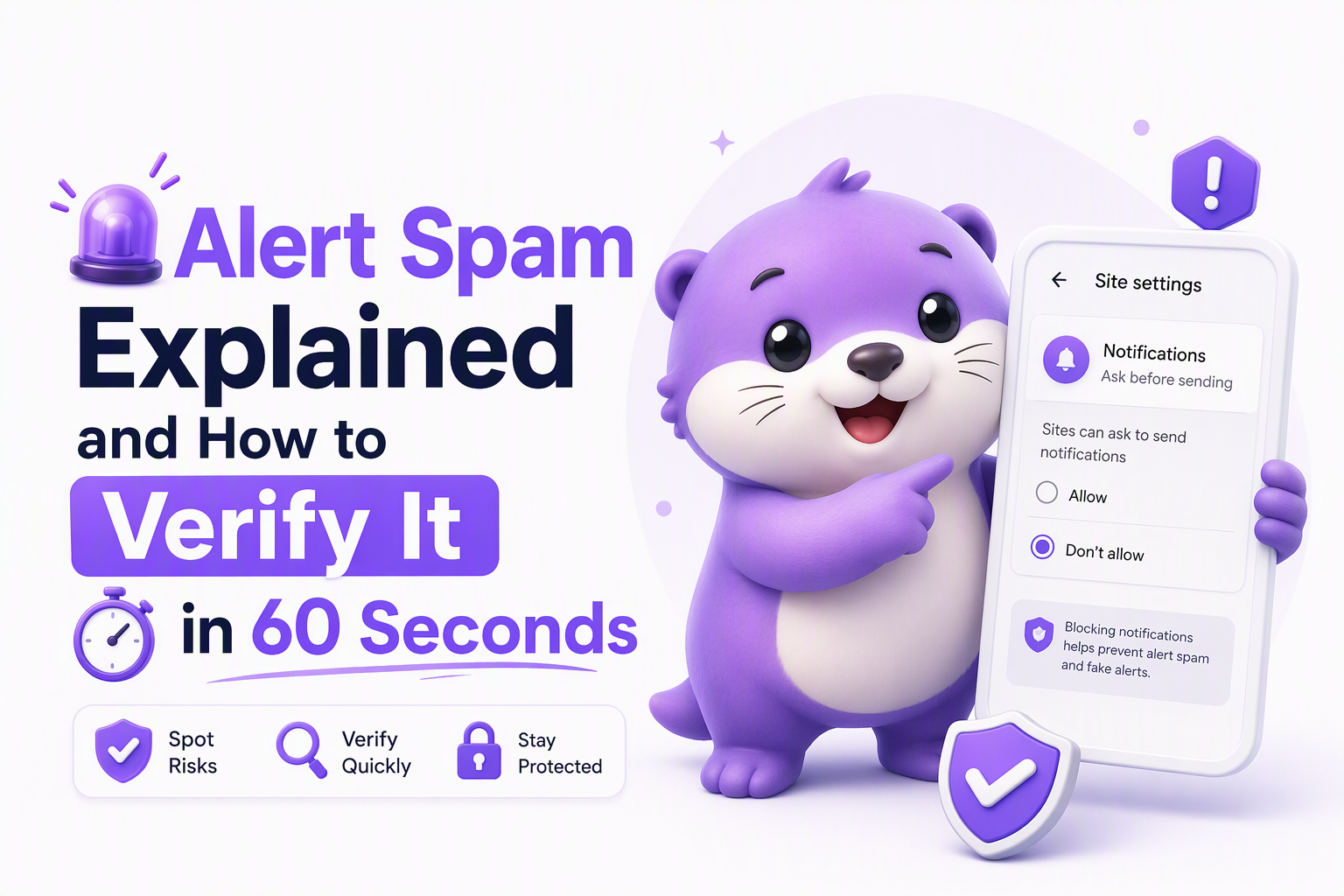
Blocking and Filtering Options That Actually Work, No Magic 3-Digit Code
No universal 3-digit code stops alert spam across all phones, but a combination of built-in filtering, carrier reporting, and permission cleanup consistently cuts it down.
The “3-digit code” question, answered plainly
- There is no single official 3-digit number that blocks all spam texts and calls on every carrier and country.
- In the US, many carriers support forwarding spam texts to 7726 (which spells SPAM on a keypad), but availability can vary by carrier and region, so treat it as a common option, not a guarantee.
High-signal options that work on most devices
- Turn on call screening: iPhone Silence Unknown Callers; Android call screening features vary by manufacturer and dialer.
- Enable SMS filtering: iPhone Filter Unknown Senders; Android Messages often includes Spam Protection depending on region and app.
- Report inside the app: most SMS apps and email clients let you mark as spam; do it to train filters.
- Use carrier tools: carrier-provided spam protection apps and settings can block known bad numbers at the network level.
What to block first (a practical priority list)
- Sites with notification permission (common source of pop-up alert spam).
- Repeat SMS senders with links.
- Unknown apps with notification access or Device Admin privileges.
For teams dealing with constant operational pages and escalating alert storm conditions, the same principle applies: remove the sources that can interrupt you without earning trust, then tighten what gets through.
| Suspicious alert type | Fast verification | Safest next action |
|---|---|---|
| Bank fraud SMS with link | Open official banking app and check alerts | Delete, then call the number on your card if still concerned |
| “Apple ID locked” pop-up in browser | Check Settings on device, not the pop-up | Close tab, clear site data, remove notification permissions |
| Unknown caller claims account takeover | Hang up and call back via known official number | Block number if they resist verification |
| Antivirus warning with phone number | Check Windows Security app status | Close browser via Task Manager, do not call |
FAQ
If your day job involves engineering alerts, the consumer problem of alert spam has a close cousin in production: alert fatigue from noisy, low-context notifications. Flash Log helps teams reduce that noise by automatically capturing bugs (even when users do not report them) and classifying issues so alerts can be driven by real, grouped bug pressure instead of raw error spam. If you want, use the same 5-step workflow above as a checklist for cleaning up your on-call notifications: verify source, add context, group repeats, set thresholds, and route only what deserves interruption.

Session Recording Tools, A Practical Decision Tree for Picking the Right Replay Stack
Choose session recording tools with a 60-second decision tree and a pilot checklist for speed-to-root-cause, privacy controls, and performance impact.
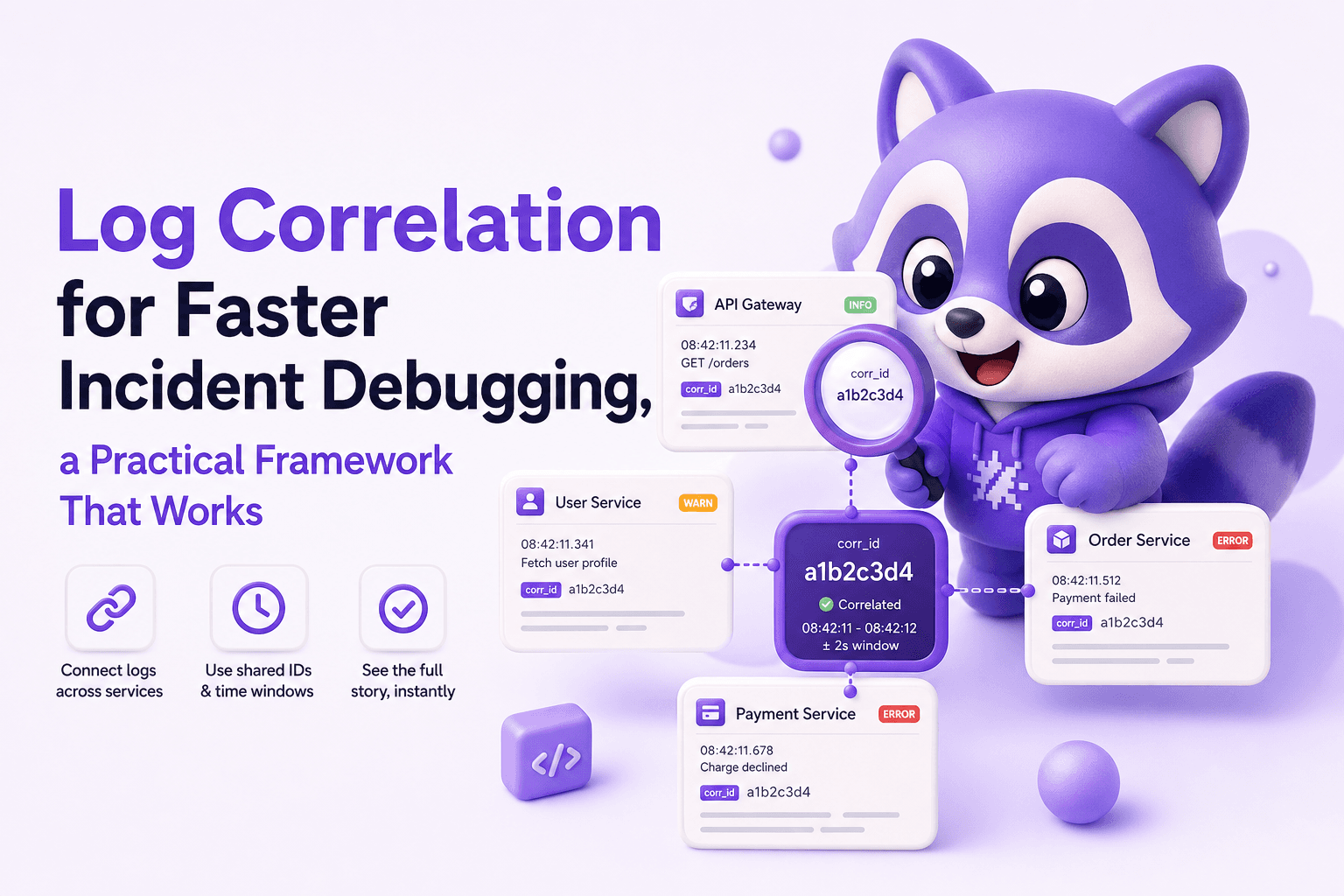
Log Correlation for Faster Incident Debugging, a Practical Framework That Works
Learn log correlation with a practical framework to connect requests across services, reduce noise, and debug production incidents faster.

Software Bug Tracking Software for Support Teams, A Ranked Shortlist and Setup Playbook
A ranked software bug tracking software shortlist for support-led teams, plus scorecard criteria and fast GitHub Issues and Jira setup playbooks.