
Session Replay Tracking Explained, What It Shows and Why It Matters
Session replay tracking is a method of recording a web or app session so you can watch what a real user did, step by step, and connect those actions to friction or failures that analytics charts often hide.
- Session replays turn clicks, navigation, and UI state changes into a timeline you can review, not just aggregated metrics.
- The fastest value comes from pairing replays with a simple review framework: define a goal, sample sessions, tag patterns, and prioritize fixes.
- Replay programs work best when privacy rules are explicit: mask sensitive inputs by default and capture only what you need.
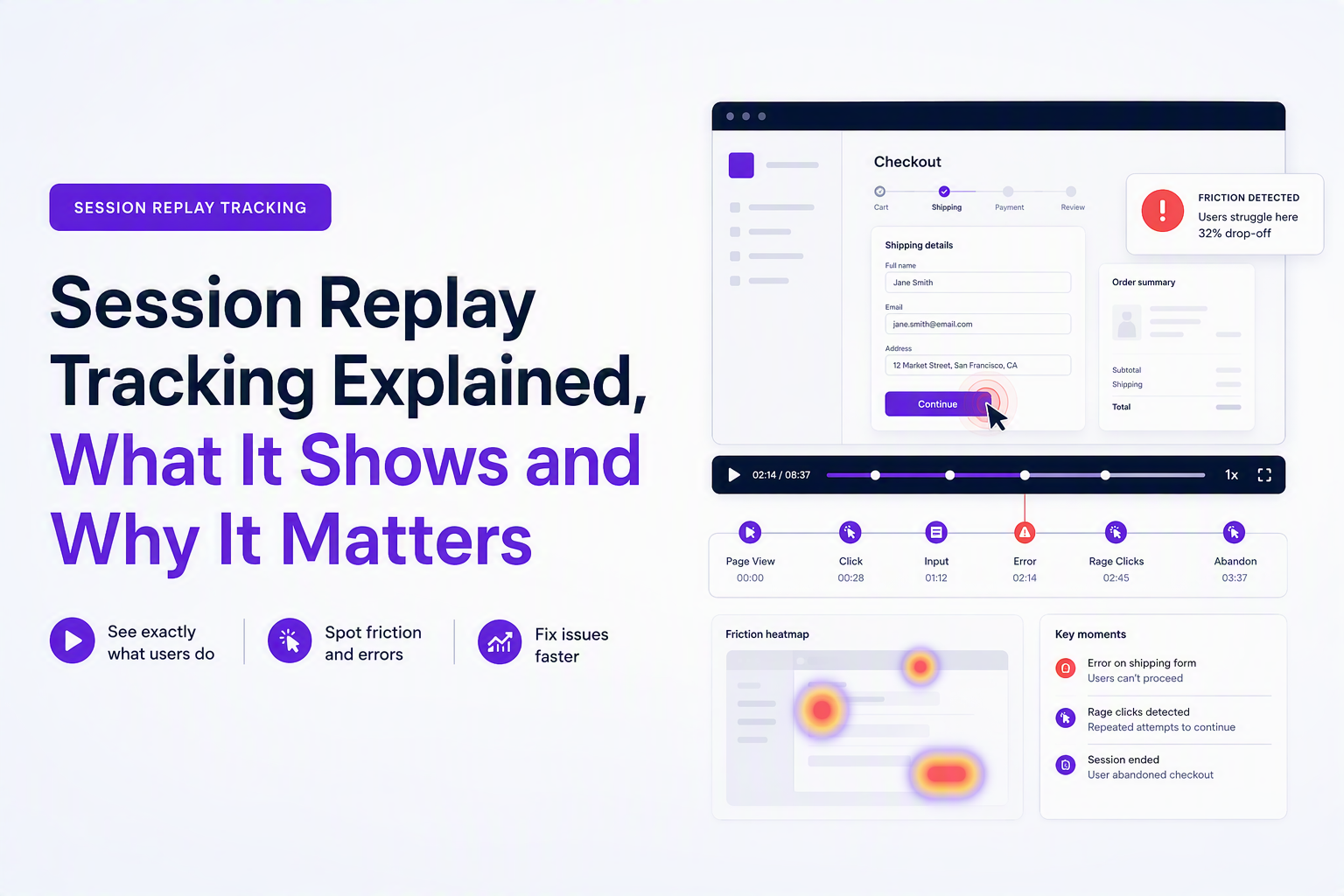
What Session Replay Tracking Means, In Plain English
Session replay tracking records a user’s on-screen journey so teams can replay the experience and see the exact sequence of interactions that led to success, confusion, or a bug.
Replay vs analytics in one practical comparison
Traditional analytics answers “how many” and “where” in aggregate, like a 62% checkout drop-off on Step 2. Replays answer “how” and “why” for an individual session, like “the Step 2 form looked complete, but the Continue button stayed disabled after autofill.”
- Analytics: counts, funnels, cohorts, averages; great for measuring impact and detecting where to look.
- Replays: sequences, UI state, misclicks, rage clicks, backtracks; great for diagnosing what actually happened.
What gets captured (and what should not)
Most session replay implementations capture DOM changes, clicks, taps, scrolls, navigation, viewport size, and timing. Good implementations also support masking and redaction so sensitive fields (passwords, payment details, tokens) are not recorded in plain text. If you want the deeper technical overview, session replay technology is worth understanding before rolling this out broadly.
A quick mental model for beginners
Think of session replay tracking as a “flight recorder” for UX: not a video of the screen, but a reconstruction of what the page looked like and how it changed after each user action. That distinction matters for privacy and for performance, because many tools replay by rebuilding the page from captured changes rather than storing raw pixels.
How Session Replay Tracking Reconstructs User Behavior
Session replay tracking works by collecting a stream of interaction and page-change events, then reassembling them into a time-ordered playback that mirrors what the user experienced.
The three layers to pay attention to
When you review a replay, you get the most diagnostic value by thinking in three layers, not just “watching the video”:
- User intent layer: what the user tried to do (search, sign up, checkout).
- UI behavior layer: what the interface did (field validation, modals, disabled states, loading spinners).
- System response layer: what the backend or network did (slow requests, errors, retries).
In our experience working with product and support teams, replays become dramatically more actionable when reviewers annotate these three layers while watching: “intent = change plan,” “UI = button disabled,” “system = POST /api/upgrade returns 500.”
Why the timeline matters more than the highlight reel
A timeline lets you correlate what happened within seconds, which is where root causes hide. A common pattern looks like this:
- T+0s: user clicks “Confirm order”
- T+1s: spinner shows, button remains clickable
- T+2s: second click (duplicate submit)
- T+3s: error banner appears
Without the time ordering, you might misdiagnose it as “users rage click.” With the timeline, you can see the UI never entered a safe “submitting” state, which is a fixable product bug.
Where replays can mislead you
Replays are still an approximation. Fonts load differently, network conditions vary, and some UI changes depend on client-side state that might not reproduce exactly during playback. Treat a replay as evidence of sequence and intent, then confirm the technical cause with logs and request traces when needed.
What You Can Learn From Replays Beyond Averages And Dashboards
Session replay tracking reveals behavioral patterns that averages hide, like repeated dead clicks, form rework, and navigation loops that indicate confusion.
A lightweight “friction pattern” taxonomy you can actually use
Instead of watching sessions randomly, tag what you see into a small set of patterns. Here is a starter taxonomy that stays useful even as volume grows:
- Dead click: click on a non-interactive element that looks clickable (often styling or affordance).
- Rage click: rapid repeated clicks on the same target (often latency or disabled state not communicated).
- Form rework: user edits the same field multiple times (often unclear validation, formatting rules, or autofill conflicts).
- Loop: user bounces between 2 pages or steps (often missing info, unclear next action, or broken back behavior).
- Abandon after error: user exits shortly after an error toast or validation message (often error clarity or recovery path).
Turn observations into hypotheses, not opinions
For each tagged pattern, write one falsifiable hypothesis and one follow-up check. Example:
- Observation: multiple dead clicks on a plan card.
- Hypothesis: users think the entire card is clickable, but only the small “Select” button works.
- Check: compare dead clicks before and after making the card clickable; confirm via click heatmap and conversion funnel.
We initially assumed rage clicks were “impatient users,” but a replay review showed a consistent UI issue: the primary button stayed enabled during an in-flight request, so users could trigger duplicates. Once we added a visible submitting state and disabled the button, the pattern largely disappeared in follow-up samples.
Use replays to validate segment-specific UX
Aggregates blur important context like device and viewport. Replays make it obvious when an issue is mobile-only (sticky footer covering a CTA), browser-specific (Safari date input), or network-related (slow 3G causing timeouts). If you are new to the concept, start with the broader primer on user session replay before you define your own review standards.
Where Session Replay Tracking Fits In A Modern Debugging Workflow
Session replay tracking complements analytics, logs, and support tickets by providing the missing reproduction context: the steps, timing, and environment that led to a failure.
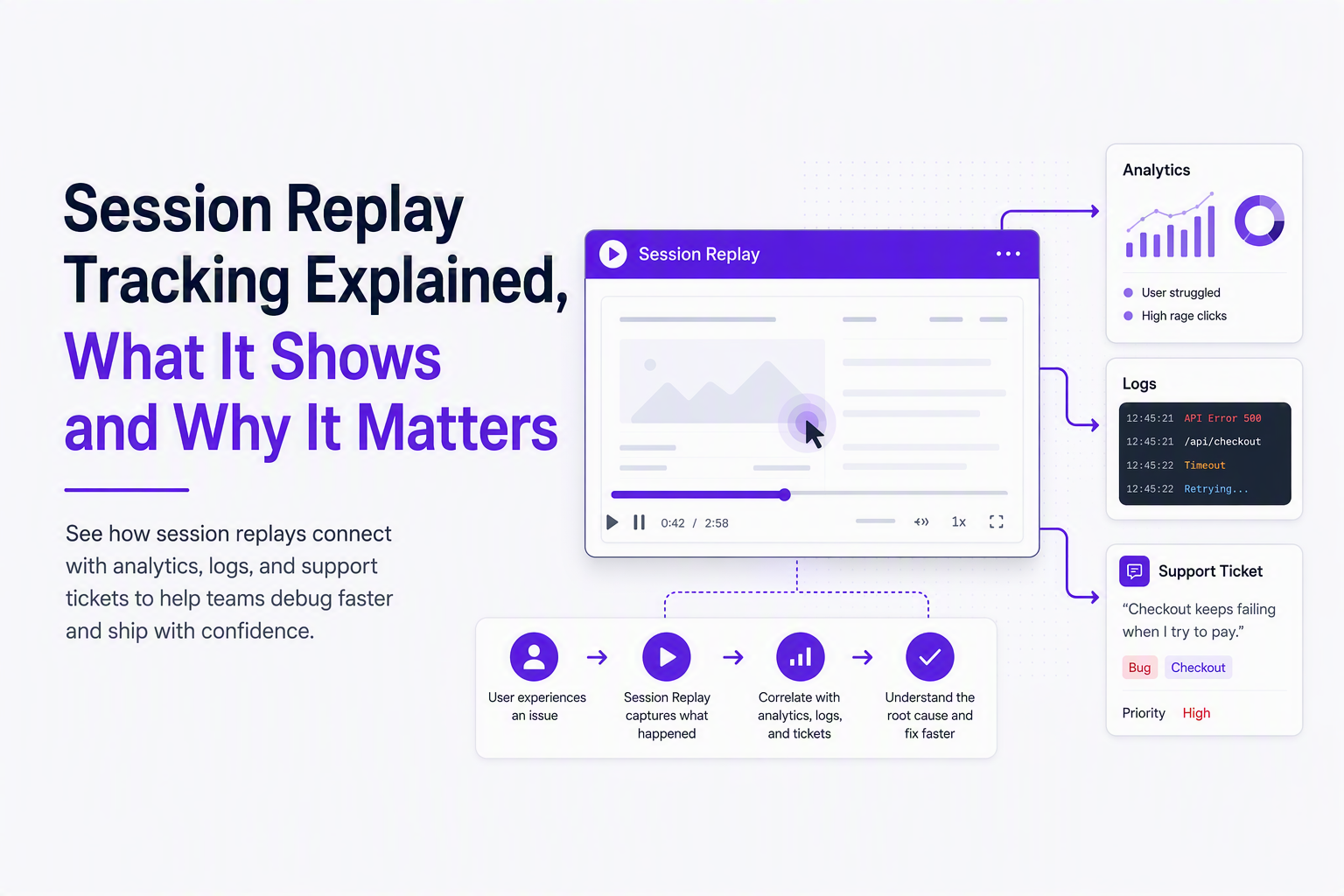
A practical 4-step workflow that reduces back-and-forth
- Detect: analytics and alerts tell you something broke or a funnel step regressed.
- Locate: filter replays to the impacted page, release, device, or error signature.
- Reproduce: use the replay to extract exact steps and timing; confirm with logs and request traces.
- Fix and verify: deploy a change, then re-sample replays to ensure the friction pattern is gone.
What to capture alongside the replay for debugging
A replay is most useful when it is paired with technical context. At minimum, aim to attach:
- Environment: browser, OS, device type, viewport, and release version.
- Navigation trail: the pages and key actions leading into the failure.
- Network trail: failing request method, endpoint, status, and timing near the issue.
If your organization handles personal data, align your replay program with privacy expectations and regulations, and document what you mask by default. A practical guide for teams is hiding masking personally identifiable information, because replay value drops quickly if reviewers cannot trust the data handling.
How to keep replays from turning into “support theater”
Watching replays can waste time if there is no discipline. Set two rules: (1) limit first-pass review to 3 to 5 sessions per issue category, (2) only escalate when you can write reproduction steps and identify the likely failing component (UI state, validation, network, or environment). That keeps the workflow evidence-driven.
A Simple Starter Checklist For Using Replay Data Well
A simple checklist makes session replay tracking useful on day one by standardizing what you review, how you tag it, and how you protect privacy.
Checklist A: pick sessions that answer a real question
- Define the question: “Why is checkout Step 2 dropping?” beats “Let’s watch some sessions.”
- Choose a scope: a single page, funnel step, or error type.
- Sample intentionally: 10 to 20 sessions is often enough to spot repeating patterns for one narrow question; if patterns are inconsistent, expand the sample or segment by device/release.
Checklist B: review sessions with a consistent rubric
- Start with outcome: success, abandonment, or error.
- Tag friction patterns: dead click, rage click, form rework, loop, abandon after error.
- Write reproducible steps: “From /pricing, select Pro, fill form, click Confirm, see spinner then error.”
- Capture context: device, browser, viewport, release, and the last meaningful action before failure.
After running a few replay audits, the pattern was clear: teams that required reviewers to end each replay with one sentence of “what to change” shipped fixes faster than teams that only collected clips.
Checklist C: privacy and governance basics
- Mask by default: treat all inputs as sensitive unless explicitly allowlisted.
- Redact known secrets: passwords, tokens, card numbers, and any identifier your company classifies as sensitive.
- Limit access: only the roles that need replay review should have it.
- Retain minimally: store replays only as long as needed for debugging and product learning.
If you are comparing tools later, a structured evaluation of session replay software can help you avoid buying something that forces risky data capture just to get basic debugging value.
| Goal | Use session replay tracking to | Pair it with | Output you want |
|---|---|---|---|
| Find UX friction | Tag repeat patterns (dead clicks, form rework, loops) | Funnels + A/B tests | A ranked list of fix candidates with examples |
| Reproduce bugs | Extract exact steps and timing around the failure | Logs + network traces | Repro steps plus failing request and environment |
| Reduce support back-and-forth | See what users saw and did before contacting support | Ticket fields + issue tracker | Clear evidence attached to a ticket |
| Validate releases | Filter sessions by release and compare friction patterns | Error monitoring | Confidence that regressions are not repeating |
FAQ
If you like the idea of session replay tracking but want less manual effort to capture and categorize real bugs, Flash Log is worth a look as a next step: it uses AI to automatically capture bugs (even when users do not report them) and classify issues so engineers get clearer reproduction context with less back-and-forth.
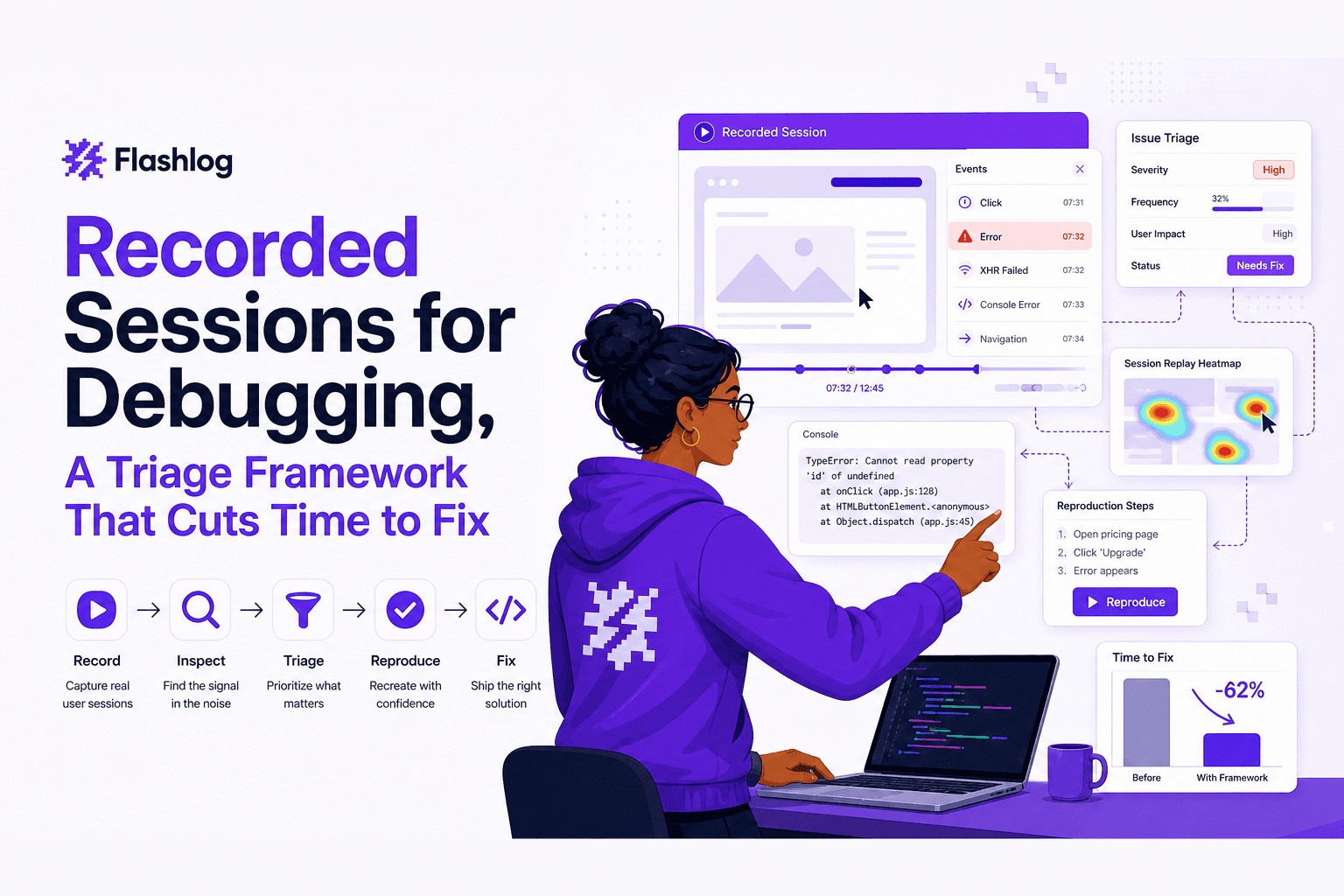
Recorded Sessions for Debugging, A Triage Framework That Cuts Time to Fix
Learn how to triage recorded sessions, capture the right context, and prove impact on MTTR and escaped bugs with a repeatable workflow.
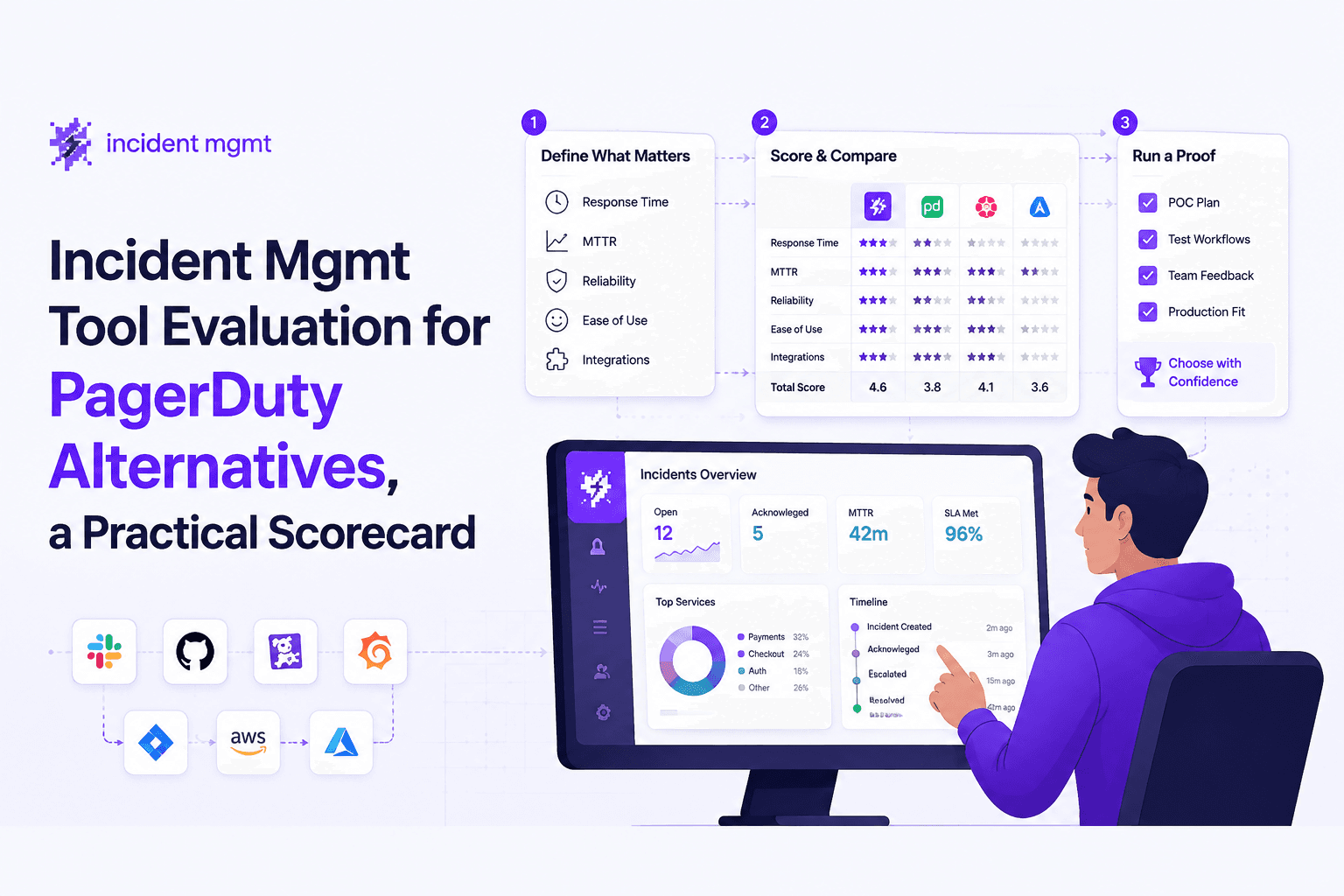
Incident Mgmt Tool Evaluation for PagerDuty Alternatives, a Practical Scorecard
Use this incident mgmt scorecard to compare PagerDuty alternatives, cut alert noise, validate workflows, and reduce MTTR with proof questions.
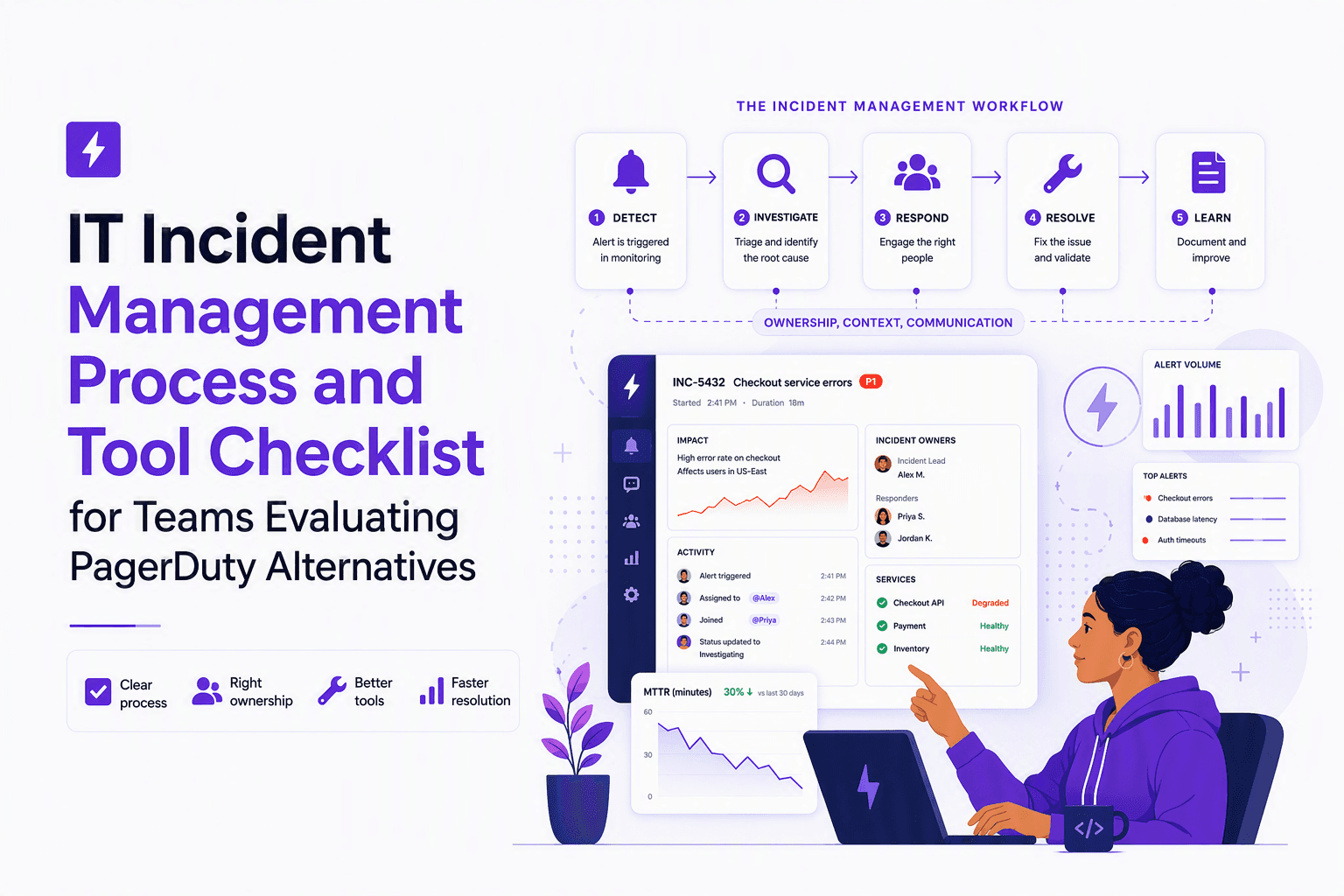
IT Incident Management Process and Tool Checklist for Teams Evaluating PagerDuty Alternatives
Build an it incident management process that maps each stage to tool requirements, major-incident roles, and integrations for PagerDuty-alternative evaluations.