
Notification Fatigue Explained and a Simple Reset Plan You Can Finish This Week
Notification fatigue is the state where frequent, low-value pings train your brain to ignore or resent notifications, making it harder to notice the ones that actually matter.
- Use a simple glossary to separate notification fatigue from alert fatigue and alarm fatigue, so you fix the right problem.
- Run a 10-question self-check and decision tree to choose whether to mute, batch, or keep each notification.
- Apply a one-week reset across phone, email, calendar, chat, and social using concrete rules and device settings that reduce noise without going off the grid.
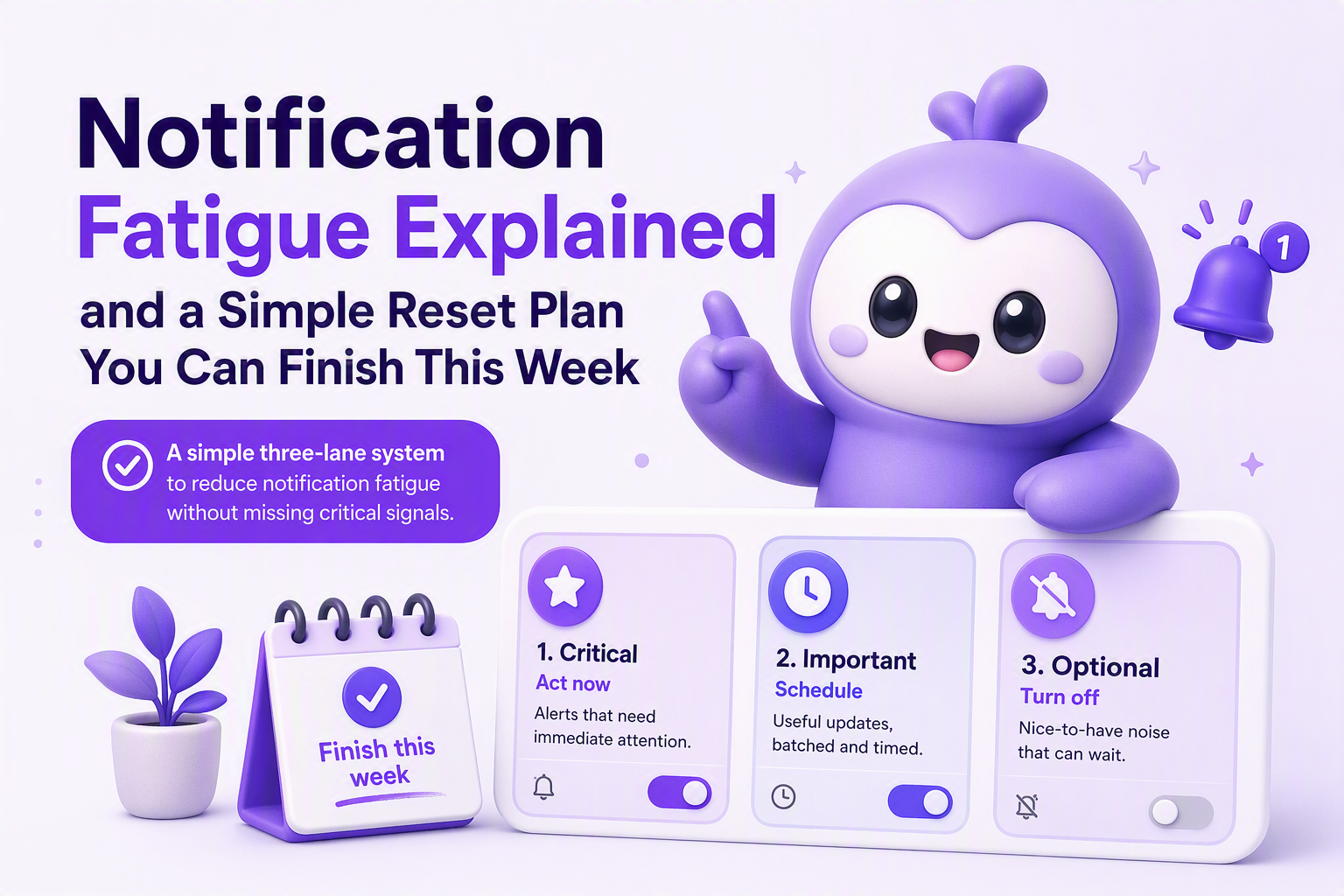
Notification Fatigue vs Alert Fatigue vs Alarm Fatigue A Simple Glossary
Notification fatigue becomes manageable faster when you label the type of interruption correctly, because each type needs a different fix.
Quick glossary with pronunciation and real-life examples
- Notification fatigue (noh-tuh-fih-KAY-shun fuh-TEEG): Too many informational pings from apps, email, chat, social, calendar reminders, and device prompts. Example: order updates, comment likes, Slack reactions, “your screen time report,” “rate this app.”
- alert fatigue (uh-LURT fuh-TEEG): Too many action-required messages, often at work, that degrade trust in the alerting system. Example: “build failed,” “API errors,” “new ticket assigned,” “prod latency high,” but most are non-urgent or duplicated.
- Alarm fatigue (uh-LAHRM fuh-TEEG): Too many alarms that claim urgency, typically in healthcare and safety contexts, causing slower responses over time. Example: bedside monitors, infusion pumps, home security sensors.
How to tell which one you have in 30 seconds
- If the ping is mostly “FYI” and you still feel stressed, it is usually notification fatigue.
- If the ping claims you should do something now, but you suspect it is often noise, it is often alert fatigue.
- If missing the signal could cause immediate harm, and there are constant urgent tones, it aligns more with alarm fatigue.
In our experience working with mixed teams of operators and knowledge workers, the biggest mistake is treating all three the same and applying one blanket rule like “turn everything off,” which breaks the truly time-sensitive lanes.
Why Notification Fatigue Happens and What It Costs You
Notification fatigue happens when interruption rate exceeds your ability to triage, and the system does not separate high-value signals from background noise.
Four root causes you can actually observe
- Low-value pings are cheap to send. Many apps optimize for engagement, not for your attention budget. The result is “micro-updates” that are rarely urgent.
- Redundancy across channels. The same event shows up as email + push + in-app badge + chat mention. Redundancy feels safer to the sender, but it multiplies interruptions.
- Uncontrolled group notifications. Big group chats and broad @channel usage make everyone a default recipient, even when only one person can act.
- False positives and weak filters. When you get notified about things that do not matter, your brain learns that notifications are unreliable. This is the same trust failure discussed in false positives in monitoring and in everyday app settings.
The real cost is not just “distraction”
- Attention switching overhead: even quick glances fragment the next 10 to 15 minutes of work into shallow chunks if pings keep landing.
- Risk of missing the important signal: when everything is high priority, nothing is.
- Social cost: people become slower to respond, then compensate by sending more follow-ups, which increases volume again.
- Decision fatigue: if you manually decide “ignore or act” 100 times a day, you spend willpower on sorting rather than doing.
What surprised our team was how often the problem was not “too many apps,” but the same three sources sending duplicative pings: chat threads, email lists, and social push notifications.
Quick Self-Assessment and Decision Tree What Should You Mute Batch or Keep
A simple self-assessment turns notification overload into a prioritized list, so you know exactly what to mute, batch, or keep real-time.
10-question checklist (score each notification source)
Pick your top 5 noisiest sources (apps, email lists, chat channels). For each source, answer Yes or No.
- Does this source ever require action within 15 minutes?
- Would missing one item create a real consequence (missed meeting, lost revenue, safety risk)?
- Do you get the same info somewhere else (email and push, or chat and ticketing)?
- Are you a primary owner, or just “included”?
- Do the messages arrive in bursts (3+ within 5 minutes)?
- Are more than half of the notifications “FYI” rather than actionable?
- Do you often open it and close it without doing anything?
- Does it interrupt deep work blocks (writing, coding, analysis) multiple times per day?
- Does the notification content lack context (unclear subject lines, vague “New activity”)?
- Does it create anxiety without enabling a specific next step?
Decision tree you can apply in under a minute
- Keep real-time if Q1 and Q2 are Yes, and Q3 is No. These are true “needs-now” signals (examples: calendar starting soon, direct messages from a manager, bank fraud alerts).
- Batch if Q1 is No, but the info is useful (examples: newsletters you actually read, shipment updates, GitHub notifications you review daily). Use scheduled summaries or a fixed check-in window.
- Mute if Q6 and Q7 are Yes, or if Q3 is Yes and you already have a preferred channel. Mute does not mean delete the app, it means remove interruption rights.
- Route if the signal is important but mis-delivered. Example: you want “mentions only” in a chat channel, not every message.
Minimum viable target for week one
- Reduce to 3 real-time lanes: people (calls and priority DMs), time (calendar), and safety/finance (bank, 2FA).
- Everything else becomes batched or muted until proven critical.
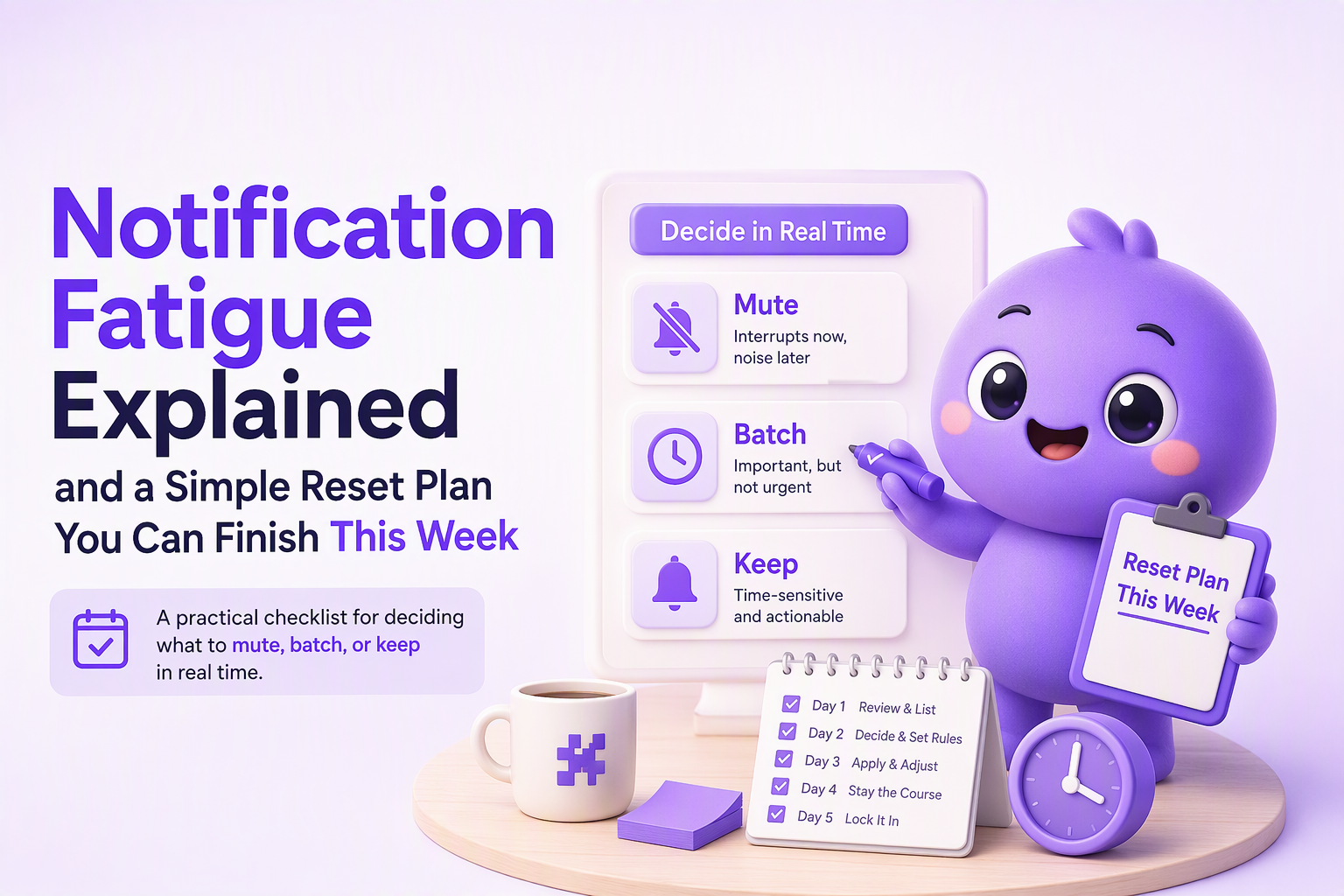
A Practical Notification Reset Phone Email Calendar Chat and Social Rules
A practical reset plan reduces notification fatigue without going off the grid by assigning each channel one job and one review rhythm.
Step 1 Pick your three lanes and write them down
- Lane A Real-time: only the things you would want during a meeting.
- Lane B Batched: reviewed 1 to 3 times per day on purpose.
- Lane C Silent: available when you open the app, but no pushes.
Step 2 Apply channel rules (concrete defaults)
- Phone calls and texts: allow calls from Favorites and repeated calls; silence unknown callers if that is safe for your situation.
- Email: turn off push for all mail, then re-enable only for 1 inbox if you must. Use rules to separate “FYI” lists into a folder you check once daily. A good default is a 20-minute email window twice a day.
- Calendar: keep start-time alerts, but reduce to one reminder per event. For most meetings, 10 minutes is enough; for travel, use 30 to 60.
- Chat (Slack, Teams, Discord): set default to “mentions, replies, and DMs.” Turn off noisy channels by default and opt in only when you are actively involved. This is the human equivalent of good alert management: route the signal to the smallest group that can act.
- Social: keep only direct messages and security alerts. Mute likes, follows, “someone posted,” and “people you may know.” Social notifications are the fastest path back into notification fatigue because they are frequent and rarely time-sensitive.
Step 3 Add a safe escalation path (so you can mute confidently)
Escalation is what makes quiet settings sustainable: if something is truly urgent, it should still reach you through a known mechanism.
- For family: define a “call twice in 3 minutes” rule.
- For work: define who can page you and how, and document it as an escalation policy even if you are not on-call.
After running a few notification audits with our team, the pattern was clear: people tolerate batching when the escalation path is explicit, but they keep “just in case” pings when escalation is vague.
Step 4 Do a 7-day “mute first, then earn back” experiment
- Day 1: mute all non-human apps.
- Days 2 to 6: re-enable only when you can name the consequence of missing it and the timeframe.
- Day 7: review what you re-enabled and downgrade anything that did not deliver real value.
Device Settings That Actually Help iPhone Android and Samsung Step by Step
Device settings reduce notification fatigue most when you combine Focus or Do Not Disturb with per-app permissions and lock screen cleanup.
iPhone (iOS) settings to start with
- Focus modes: Settings > Focus. Create at least two: Work and Personal. In each, allow notifications from specific people and apps. Consider “Time Sensitive” if you trust the app category.
- Scheduled Summary: Settings > Notifications > Scheduled Summary. Put batched apps here (shopping, social, news) and schedule 1 to 3 delivery times.
- Lock Screen controls: Settings > Notifications. Set “Show Previews” to “When Unlocked” if sensitive previews pull your attention.
- Per-app tuning: Settings > Notifications > [App]. Turn off Sounds first, then Badges, then Lock Screen, and only then banners. This order keeps information available without making it interruptive.
Android (Pixel and most Android) settings to start with
- Do Not Disturb: Settings > Notifications > Do Not Disturb. Allow exceptions for calls, messages, and specific apps.
- Notification history: Settings > Notifications > Notification history. Use this for one week to see what you are missing before you permanently mute.
- Per-app notifications: Settings > Apps > [App] > Notifications. Turn off non-essential categories, not just the whole app. Many apps split into “promotions,” “updates,” and “account.”
- Silent notifications: Long-press a notification > set to Silent when appropriate. Silent keeps it in shade without vibration or sound.
Samsung (One UI) settings to start with
- Modes and Routines: Settings > Modes and Routines. Create a Work mode that limits apps and notifications during set hours or locations.
- Notification pop-up style: Settings > Notifications > Notification pop-up style. Use Brief for fewer intrusive banners.
- App notification categories: Settings > Notifications > App notifications > [App] to disable promotional categories while keeping critical account alerts.
A quick safety check before you silence too much
- Keep: banking and payment alerts, 2FA, delivery for high-value items, calendar, direct people channels.
- Batch: newsletters, community updates, most project tools.
- Mute: likes, follows, “tips,” “we miss you,” most game and shopping promos.
| Symptom | Likely cause | Best first move | What to avoid |
|---|---|---|---|
| You check your phone constantly even without notifications | Habit loop, badges, lock screen previews | Turn off badges + previews; use Focus during work blocks | Deleting every app (you will reinstall without fixing settings) |
| You miss important messages because everything blends together | No priority lanes | Keep only calls, calendar, priority DMs real-time; batch the rest | Leaving all chat channels on “all messages” |
| You get duplicates across email + push + chat | Redundant routing | Choose one primary channel per type of update | “Just in case” alerts in three places |
| You feel stressed by vague notifications | Low-context pings | Disable “activity” and “recommendation” categories | Training yourself to ignore all notifications |
FAQ about notification fatigue
If notification overload is also coming from bug reports, noisy issue intake, or constant “something broke” pings, Flash Log can help by capturing bugs automatically even when users do not report them and classifying them with AI so teams spend less time on manual triage and irrelevant notifications.

Alert Management System Playbook for On-Call Teams, Routing, Deduping, Escalation, Metrics
Build an alert management system in a week with routing, dedupe, escalation timelines, and KPIs like MTTA and noise ratio.
Data Retention Explained, Examples, Schedules, and How Long to Keep Session Replay Data
Learn data retention in plain English, how long to keep session replay data, and a ready-to-use retention schedule template.
False Positives In AI Systems, How To Measure Them Correctly And Reduce Noise
Learn to measure false positives correctly and apply a practical framework to reduce alert noise without missing real incidents.