
Notification Spam Explained and How to Stop It on Any Device
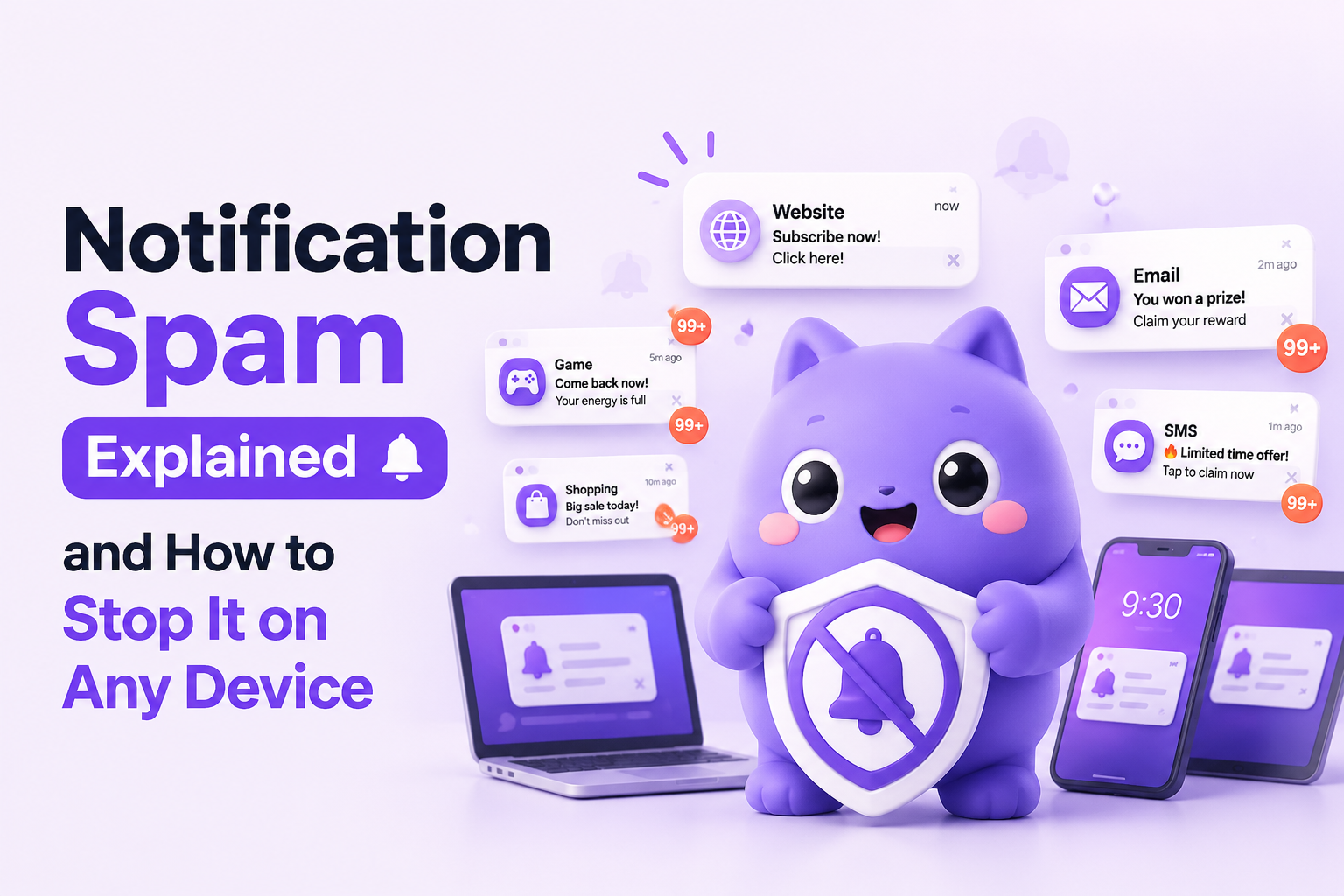
Notification spam is a flood of unwanted alerts from apps, browsers, email senders, or text messages that interrupts you without adding useful information. The term sounds vague, but the fix gets much easier once you sort the alerts by source instead of treating every buzz, banner, and badge as the same problem.
- Notification spam usually comes from one of four places: apps, browser permissions, marketing email, or SMS senders.
- The fastest cleanup method is to identify the channel first, then change the setting at the source instead of muting everything at the device level.
- A short monthly review of app permissions, browser site access, and inbox filters prevents most repeat noise.
What Notification Spam Actually Means
Notification spam usually falls into four buckets, and each bucket needs a different fix. A simple taxonomy helps: app spam comes from installed apps pushing promotions or constant reminders; browser spam comes from websites you allowed to send notifications; email spam comes from newsletters, promos, and automated campaigns; SMS spam comes from marketing texts or scam messages. If the alert shows a site name like a news domain, it is probably browser-based. If it shows an app icon, it is an app-level permission issue. If it lands in Mail or Gmail, it is an inbox problem, not a phone notification problem.
The practical reason this matters is that each source has a different control panel. App alerts live in iOS or Android notification settings. Website prompts live in Safari, Chrome, or another browser. Email overload needs unsubscribe links, filters, or category rules. SMS noise often requires blocking the sender and reporting junk. In our experience working with people cleaning up alert overload, the biggest mistake is turning on Do Not Disturb and assuming the problem is solved. That hides noise for a while, but the underlying notification spam keeps piling up.
Another useful test is intent. Helpful notifications are transactional or safety-related, such as bank login alerts, package delivery updates, or two-factor codes. Spammy notifications are promotional, repetitive, or irrelevant to what you need right now. That difference is the line between signal and interruption, and it is close to the same problem teams face with alert fatigue in operational tools.
How to Identify Where the Spam Is Coming From
The fastest way to stop notification spam is to trace the alert back to its source before changing settings. Use this decision tree: first, read the sender name or icon on the alert. Second, ask where you saw it: lock screen, browser pop-up, inbox, or Messages app. Third, open that exact app or service and check whether the same sender appears there. Fourth, change the permission or block rule at that layer.
Universal decision tree
If the alert appears as a website domain, open your browser notification settings and remove that site. If the alert appears as an app, go to the device notification settings for that app and switch off promotions or all alerts. If the alert is an email, unsubscribe if the sender is legitimate, then mark future messages with filters or spam rules. If the alert is a text message, block the number and use your carrier or phone's report junk feature.
What surprised our team was how often people blamed the wrong layer. We initially assumed most cases were app settings, but browser permissions were the repeat offender whenever users had tapped “Allow” on coupon, video, or download sites. If you are seeing dozens of prompts after visiting sketchy pages, that is closer to an alert storm than a normal reminder problem.
| What you see | Most likely source | Best first fix |
|---|---|---|
| Banner with website name | Browser permission | Remove site access in Safari or Chrome |
| Badge or pop-up from installed app | App notification setting | Turn off promos or disable alerts for that app |
| Inbox filling with promos | Email marketing | Unsubscribe, filter, or mark as spam |
| Texts from unknown numbers | SMS marketing or scam | Block sender and report junk |
How to Stop Notification Spam on iPhone, Android, and Samsung
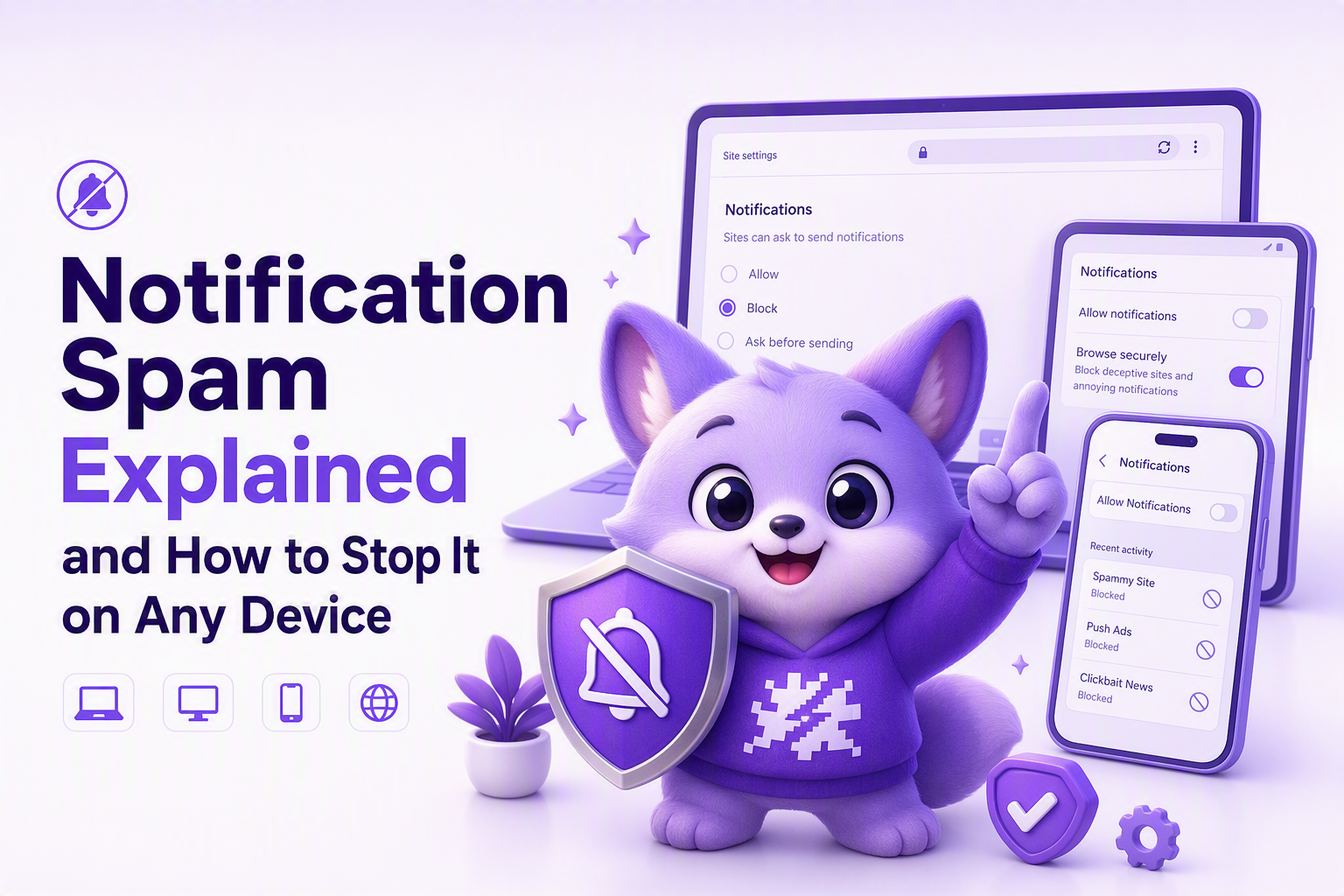
Device-level cleanup works best when you remove alerts in three places: app notifications, browser permissions, and message channels. On iPhone, go to Settings > Notifications, choose the app, and turn off Allow Notifications or disable sounds, badges, and lock screen banners. For browser-based spam in Safari, go to Settings > Apps > Safari and review website-related settings, or open Safari itself and clear website data if a site keeps reappearing. For email overload, open Mail or Gmail, unsubscribe from legitimate senders, then move persistent junk to spam. For texts, open the message, tap the sender, and block or report it.
On Android, open Settings > Notifications > App notifications, then sort by most recent to catch the worst offenders fast. In Chrome, open Settings > Site settings > Notifications and remove websites you do not trust. In Google Messages, long-press a conversation to block and report spam. Android also lets you fine-tune channels inside many apps, so you can keep delivery updates while turning off promos, reminders, or “recommended for you” pushes.
On Samsung phones, the path is usually Settings > Notifications > App notifications, with extra controls inside One UI for categories and badges. Samsung Internet users should also check browser notification permissions directly in the browser settings. After running cleanup audits across mixed iPhone and Samsung households, the pattern was clear: disabling app categories is often better than disabling the whole app. That keeps useful alerts while cutting the false positives that make every ping feel urgent.
Quick cleanup checklist
Review the top 10 apps by recent notifications. Remove browser permissions for sites you do not recognize. Unsubscribe from any mailing list you have not opened in the last month. Block unknown SMS senders instead of replying. If notification spam is extreme, reset browser site permissions and start fresh.
How to Prevent Notification Spam From Coming Back
Notification spam stays under control when you treat permissions like a monthly hygiene task instead of a one-time fix. The simplest framework is review, remove, reduce, and repeat. Review recent senders. Remove any site or app that no longer deserves access. Reduce categories instead of muting everything. Repeat the process once a month or whenever a new device or app enters your routine.
Browser hygiene matters most because one accidental click can authorize weeks of junk. Never allow notifications from sites unless you expect time-sensitive updates, such as calendar tools or messaging products. For email, use filters for recurring promo phrases, retailer names, and auto-generated campaigns. For SMS, avoid posting your phone number widely, and use separate contact details for shopping or lead forms when possible. If you manage lots of digital accounts, basic alert management habits apply surprisingly well to personal devices too: route important messages clearly, suppress junk early, and review exceptions regularly.
A good benchmark is simple: if you cannot explain why an alert exists, it probably should not be allowed. In our experience, a 10-minute monthly review prevents most notification spam from rebuilding because the worst senders tend to be repeat sources, not brand-new ones. That same source-first approach also makes alert triage easier in work systems, where noise often grows the same way consumer alerts do.
Frequently Asked Questions
If your problem is no longer consumer notification spam but noisy internal bug and incident signals, Flash Log addresses the same signal-versus-noise issue for engineering teams. It captures bugs automatically, classifies them with AI, and helps reduce raw issue noise so teams can focus on alerts that actually deserve attention.
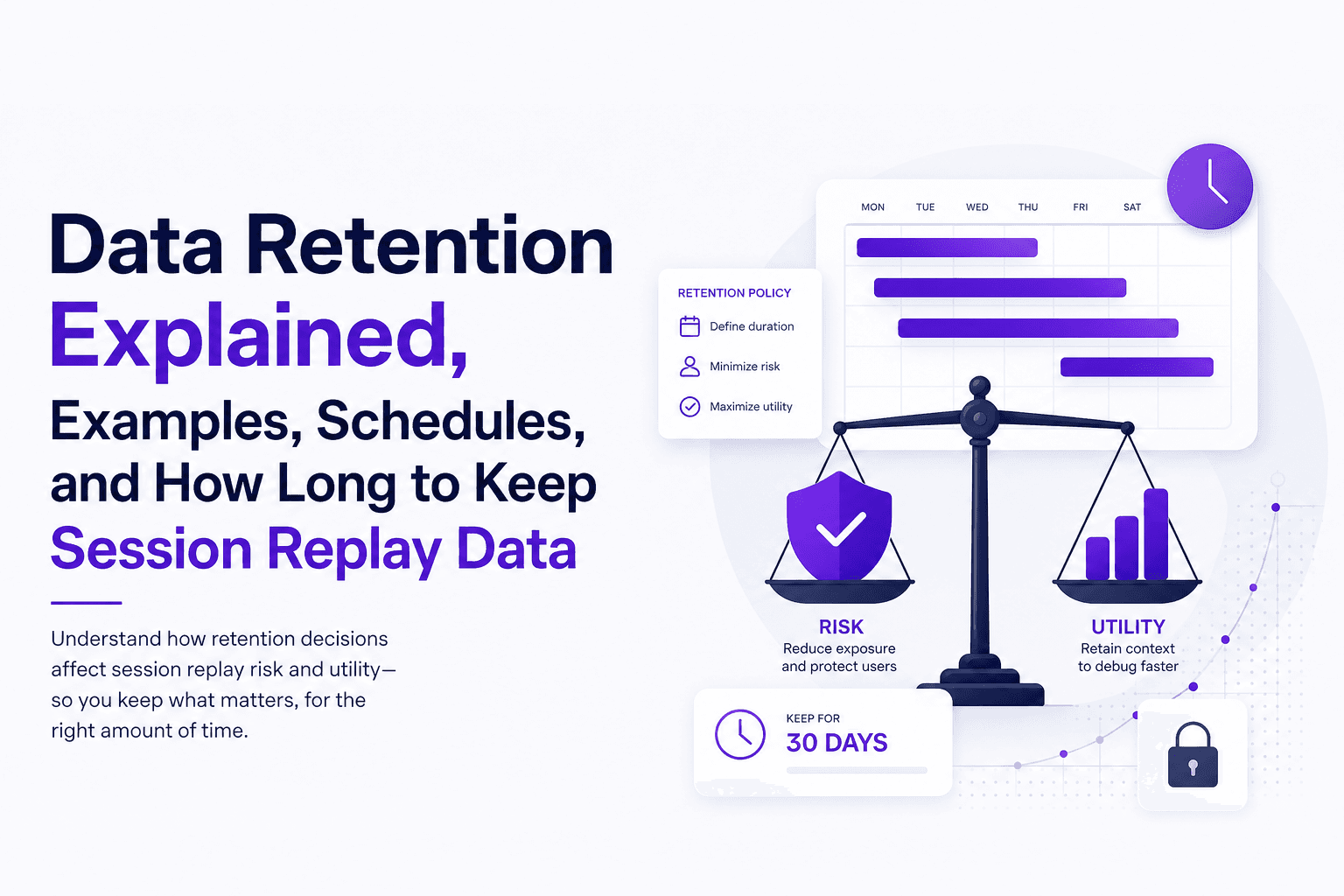
Data Retention Explained, Examples, Schedules, and How Long to Keep Session Replay Data
Learn data retention in plain English, how long to keep session replay data, and a ready-to-use retention schedule template.

CX Genie Reduced Incident Investigation Time by 58% with Flashlog
See how CX Genie used Flashlog to cut incident investigation time by 58%, save 34 engineering hours, and detect issues before customers reported them.
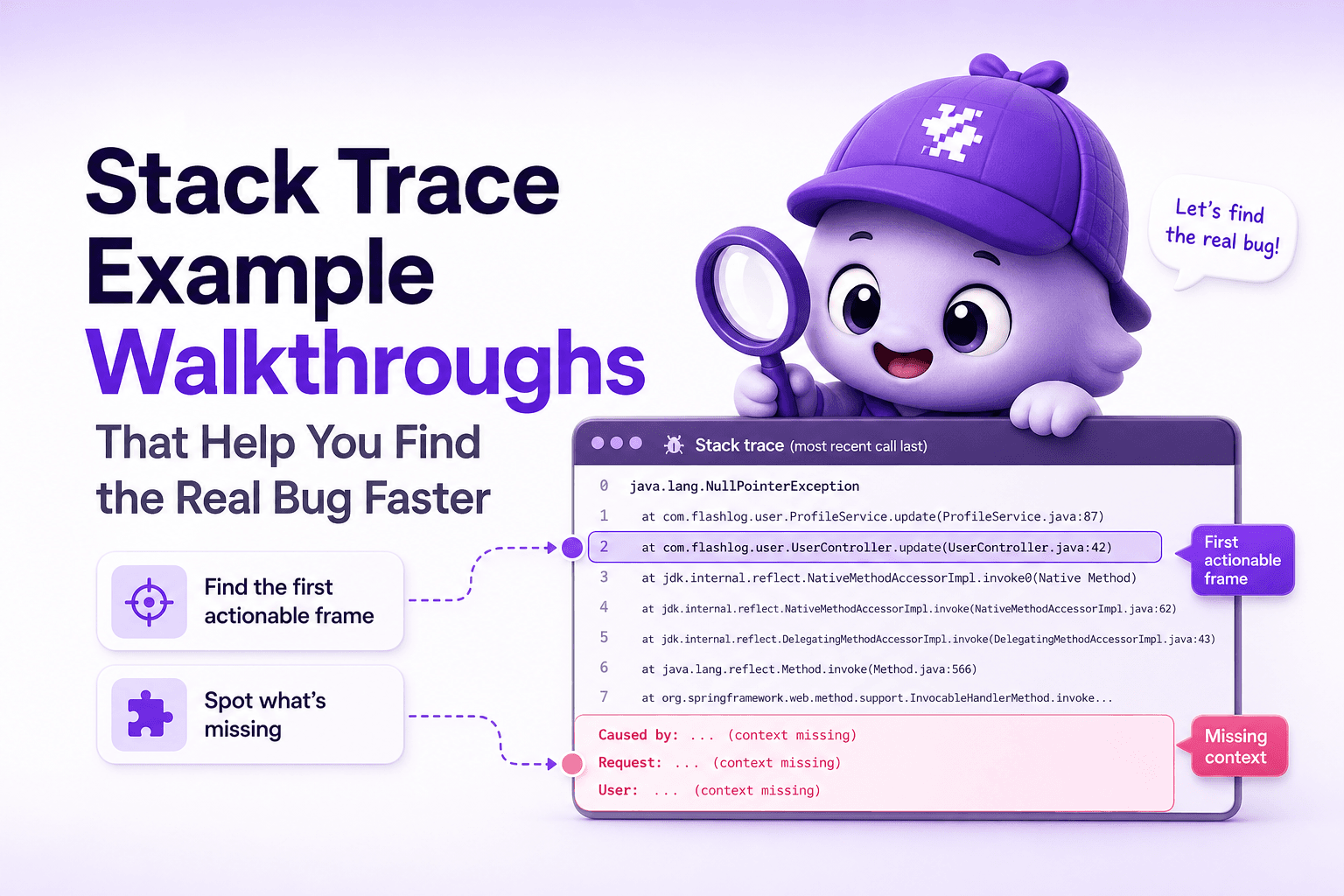
Stack Trace Example Walkthroughs That Help You Find the Real Bug Faster
Learn how to read a stack trace example in production, spot the first actionable frame, and gather the missing context to fix bugs faster.