
Session Recording Explained - Choose the Right Type and Set It Up Correctly
“Session recording” can mean three very different things, and picking the wrong one wastes weeks: website session replay for product debugging, Citrix session recording for regulated virtual apps, or meeting recording for collaboration. This guide disambiguates session recording with a decision table, then gives practical setup checklists for retention, privacy, and day-to-day operations.
- Use a 3-question decision framework (who, where, and why) to identify the correct type of session recording before you buy or deploy anything.
- For website session recording, prioritize reproducibility: capture user journey + failing requests + environment context, and mask sensitive inputs by default.
- Retention and privacy rules differ sharply across website replay, Citrix, and meeting recordings; set storage, access control, and audit trails up front.
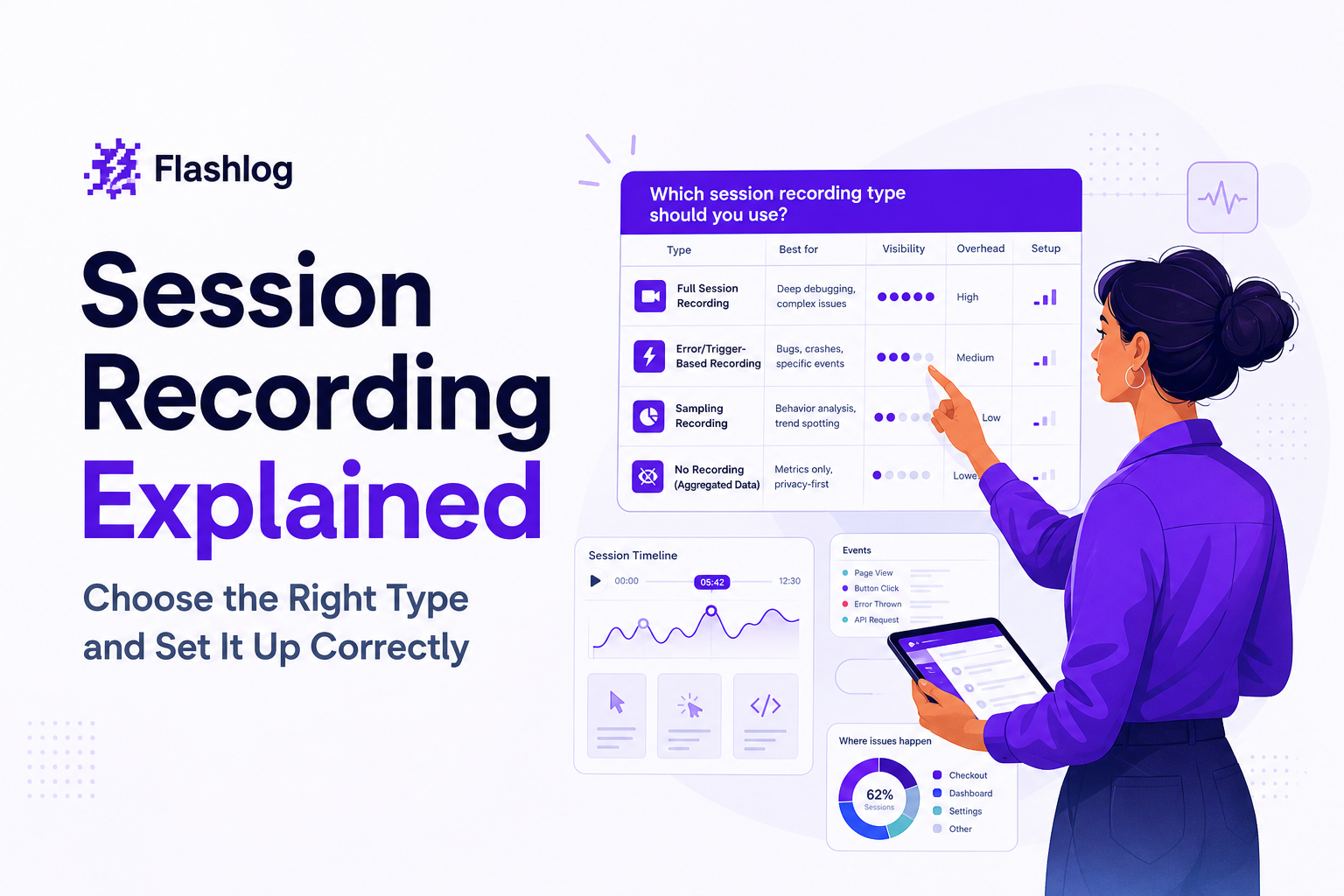
Which Type of Session Recording Do You Mean
The core problem is ambiguity. In practice, teams ask for “session recording” when they are trying to solve one of three problems: (1) understand what a user did on a website or app, (2) prove what happened inside a virtual desktop or published app session for compliance, or (3) share what happened in a meeting for people who were not there. If you align on the “who/where/why” first, the implementation becomes straightforward.
A 3-question decision framework
- Who is the actor? End user on your site, employee inside VDI, or meeting participants.
- Where does the session run? Browser/app client, Citrix infrastructure, or conferencing platform.
- Why record it? Debugging and UX, compliance and security, or knowledge sharing and accountability.
3-column decision table (use this to disambiguate fast)
| Type | What is being recorded | Best for | Typical owners | Key risks |
|---|---|---|---|---|
| Website session recording (session replay) | User journey signals: pages, clicks, form interactions, console errors, network requests, environment context | Reproducing bugs, improving funnels, diagnosing edge cases | Product, engineering, QA, support | PII capture, over-collection, unclear retention |
| Citrix session recording | Screen activity within a virtual desktop or published application session | Regulatory compliance, insider risk investigations, audit evidence | IT, security, compliance | Storage growth, access control, chain of custody |
| Meeting recording | Audio/video, screen share, chat/transcript (platform dependent) | Async collaboration, training, documentation | Ops, team leads, enablement | Consent, external sharing, data residency |
Website Session Recording for Product and Engineering Teams
Website session recording is often shorthand for “session replay”: reconstructing what happened in the browser so teams can reproduce issues without asking users to narrate every click. The best setups treat session recording as evidence packaging, not just a video. In our experience working with SaaS support and engineering teams, the fastest debug loops come from linking the user action trail to the failing request and the environment where it happened.
How replay works (what you are actually collecting)
- DOM and interaction events: navigation, clicks, inputs, scrolls, and state changes to reconstruct a timeline.
- Technical signals: console errors, frontend exceptions, and network request metadata (method, URL, status, timing).
- Environment context: browser, OS, device, viewport, release/build, and connection hints.
- Privacy controls: masking inputs, redacting sensitive fields, and limiting capture scope.
Reproducibility checklist (what to capture vs what to mask)
Use this checklist to decide whether your session recording will actually help engineering reproduce a bug:
- Must capture: last meaningful actions (5 to 20 steps), page path, timestamps, failing request status and latency, release version, browser/OS/device.
- Capture if needed: console logs around the error, feature flag state, A/B test variant, and performance timing marks.
- Mask by default: passwords, payment fields, auth tokens, government IDs, free-text notes, and any “message” fields that may contain PII.
- Do not capture (unless you have a very explicit legal basis): full keystrokes, full request/response bodies with personal data, or any field your privacy policy does not cover.
A practical workflow that turns sessions into fixes
Session recording creates value when it fits into triage and handoff. A simple, repeatable workflow looks like this:
- Detect: flag sessions with errors, failed requests, or rage clicks.
- Package context: attach user journey + failing request + environment into one “repro bundle”.
- Triage quickly: decide if it is a known issue, a regression, or a new class of bug.
- Hand off: create an issue with reproduction steps and technical evidence.
- Verify: confirm the fix by replaying similar sessions post-release.
If you want deeper background on definitions and tradeoffs, see session replay. For a more operational view, session replay workflow is a useful model for turning evidence into shipped fixes.
Citrix Session Recording in Plain English
Citrix session recording is a different animal: it is primarily about compliance and security auditing inside virtual desktops and published apps. Instead of reconstructing a web page, you are capturing on-screen activity for specific users, groups, or machines, then storing those recordings with access controls and audit logs.
Architecture at a glance (components you should plan for)
- Recording policy and triggers: who gets recorded (users/groups), when recording starts, and whether it is continuous or event-driven.
- Recording agents/services: components that capture session activity from the VDA or session host.
- Storage: a central repository sized for retention and concurrency, often the first bottleneck.
- Playback and search: tools for authorized reviewers to locate sessions by user, time window, and machine.
- Audit trail: logs of who accessed which recording, when, and why.
Step-by-step deployment path (a consolidated checklist)
- Define scope: list regulated apps, user groups, and audit scenarios (for example: trading floor activity, call center access to customer records).
- Set retention targets: start with a compliance-driven minimum (often 30 to 180 days depending on policy), then validate storage cost.
- Design access control: separate roles for administrators vs reviewers; require approvals for playback where appropriate.
- Plan storage and throughput: estimate daily recording volume from peak concurrent sessions and average session length; include growth headroom.
- Test chain of custody: confirm recordings cannot be edited, that access is logged, and that exports are controlled.
- Run a pilot: record a limited group for 1 to 2 weeks, then adjust policies before expanding.
We initially assumed Citrix session recording projects fail because of “hard installs,” but after running a few internal audits the pattern was clear: retention and access governance are the real blockers, because storage projections and reviewer permissions get decided too late.
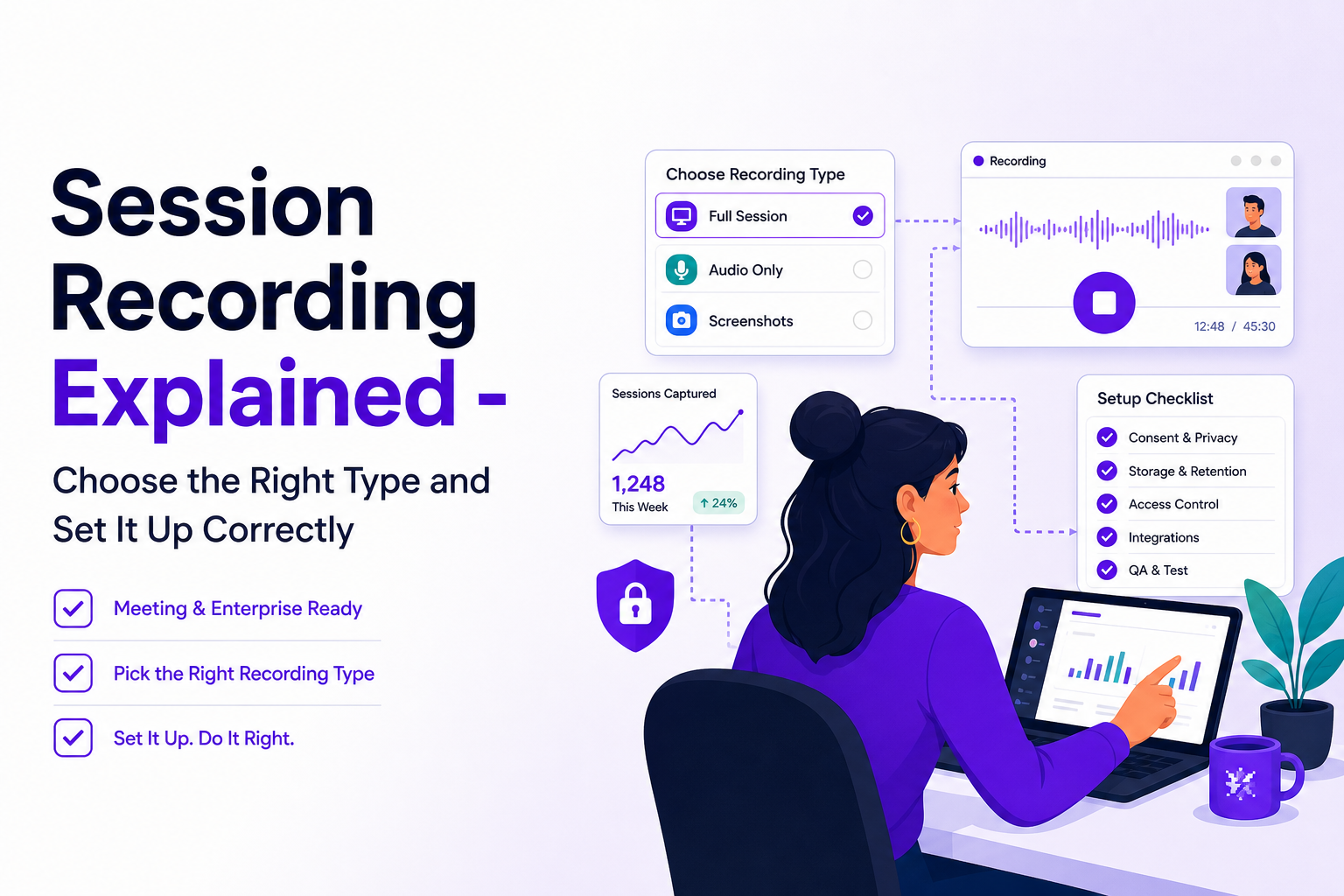
How to Record a Meeting Session in Zoom, Teams, and Google Meet
Meeting session recording is the most familiar type, but it still breaks in predictable ways: the host lacks permissions, recordings land in the wrong storage location, or sharing is too permissive. Use the steps below as a quick “do it right the first time” checklist.
Zoom (local vs cloud recording)
- Confirm permission: the host (or co-host) typically controls recording; some orgs require admin enablement.
- Start recording: in-meeting controls → Record.
- Choose storage: local (saved on the host machine) vs cloud (saved to Zoom cloud, if enabled).
- Sharing: for cloud recordings, use link sharing with passcodes and expiration where possible; avoid posting open links.
Microsoft Teams (OneDrive/SharePoint storage model)
- Start recording: meeting controls → Record and transcribe (wording varies by tenant).
- Where it saves: recordings are typically stored in OneDrive (for non-channel meetings) or SharePoint (for channel meetings).
- Access: manage via file permissions; remove “anyone with the link” and use named users or groups.
- Retention: align Teams meeting recording retention with your Microsoft 365 retention policies.
Google Meet (Google Drive storage)
- Confirm eligibility: recording is available only on certain Workspace editions and must be enabled by an admin.
- Start recording: Activities → Recording → Start recording.
- Where it saves: the recording is saved to the organizer’s Google Drive (often in a “Meet Recordings” folder) and may be emailed to participants.
- Sharing: restrict Drive permissions; avoid forwarding auto-generated links outside the intended audience.
Session Length vs Retention vs Availability
People often ask “how long is a recording session?” but the more useful question is: what is the maximum session length your system can reliably store, and how long will you keep it available for the people who need it? These constraints differ across website session recording, Citrix, and meetings.
Constraints table across the three contexts
| Context | Typical session length | Retention driver | Availability needs | Common failure mode |
|---|---|---|---|---|
| Website session recording | Seconds to 30+ minutes (depends on app) | Debug value window, cost, privacy policy | Fast access for engineering and support | Too much data, not enough context (no failing request/environment) |
| Citrix session recording | Minutes to full work shifts | Compliance requirements and audits | Controlled access for reviewers, export controls | Storage blowups and weak access governance |
| Meeting recording | 15 to 90 minutes typical | Org knowledge management and policy | Easy sharing with the right audience | Oversharing links, unclear ownership in Drive/OneDrive |
A retention decision framework you can apply immediately
- Define the “useful window”: for debugging, it is often 7 to 30 days; for compliance it may be 90 to 365+ days; for meetings, it depends on how long decisions stay relevant.
- Set a default and exceptions: default retention plus longer retention for flagged incidents, escalations, or regulated workflows.
- Automate deletion: if you cannot reliably delete on schedule, you do not have a retention policy, you have a hope.
- Document access paths: who can view, download, and share, and how approvals work.
Privacy and Compliance Checklist for Session Recording
Privacy is the shared failure mode across all three meanings of session recording. The governance model that works best is “collect less, protect more, prove access.” After running multiple privacy reviews, what surprised our team was how often teams had masking turned on, but still allowed broad internal access, which creates the real exposure.
Consolidated governance checklist (use this before rollout)
- Consent and notice
- Publish clear notice: what is recorded, why, and how long it is kept.
- For meetings, announce recording at start and rely on platform indicators plus policy.
- Data minimization
- Record only what you need to meet the purpose (debugging, compliance, or collaboration).
- Disable capture on sensitive pages or fields where possible.
- PII masking and redaction
- Mask inputs by default for website session recording; explicitly allow only safe fields.
- Redact known sensitive keys (password, token, card_number) and free-text fields unless required.
- Access control
- Use least privilege: separate “can view” from “can export/download.”
- Require SSO and enforce MFA for any playback portal.
- Auditability
- Log access events (who viewed what, when, from where).
- Review access logs on a schedule, especially for Citrix and regulated environments.
- Retention and deletion
- Set retention per category and automate deletion.
- Define an escalation path for legal holds and incident investigations.
Operational checklist (so it works day to day)
- Ownership: name an owner for policies, storage costs, and access reviews.
- Runbooks: document how to find a recording, how to share safely, and how to export if needed.
- Sampling and QA: periodically verify masking is working and that sensitive fields are not leaking into recordings.
- Incident response: define what happens if sensitive data is captured accidentally (containment, deletion, notification).
FAQ
If your goal is faster debugging from website session recording, Flash Log is designed to capture the user journey, failing request, and environment context around each issue, while masking sensitive inputs so engineering can reproduce bugs without back-and-forth with users.

Event Sampling for Observability Teams, Cut Noise Without Missing Critical Incidents
Event sampling playbook for observability: reduce telemetry noise without hiding incidents. Define triggers, dedupe rules, and reliability checks.
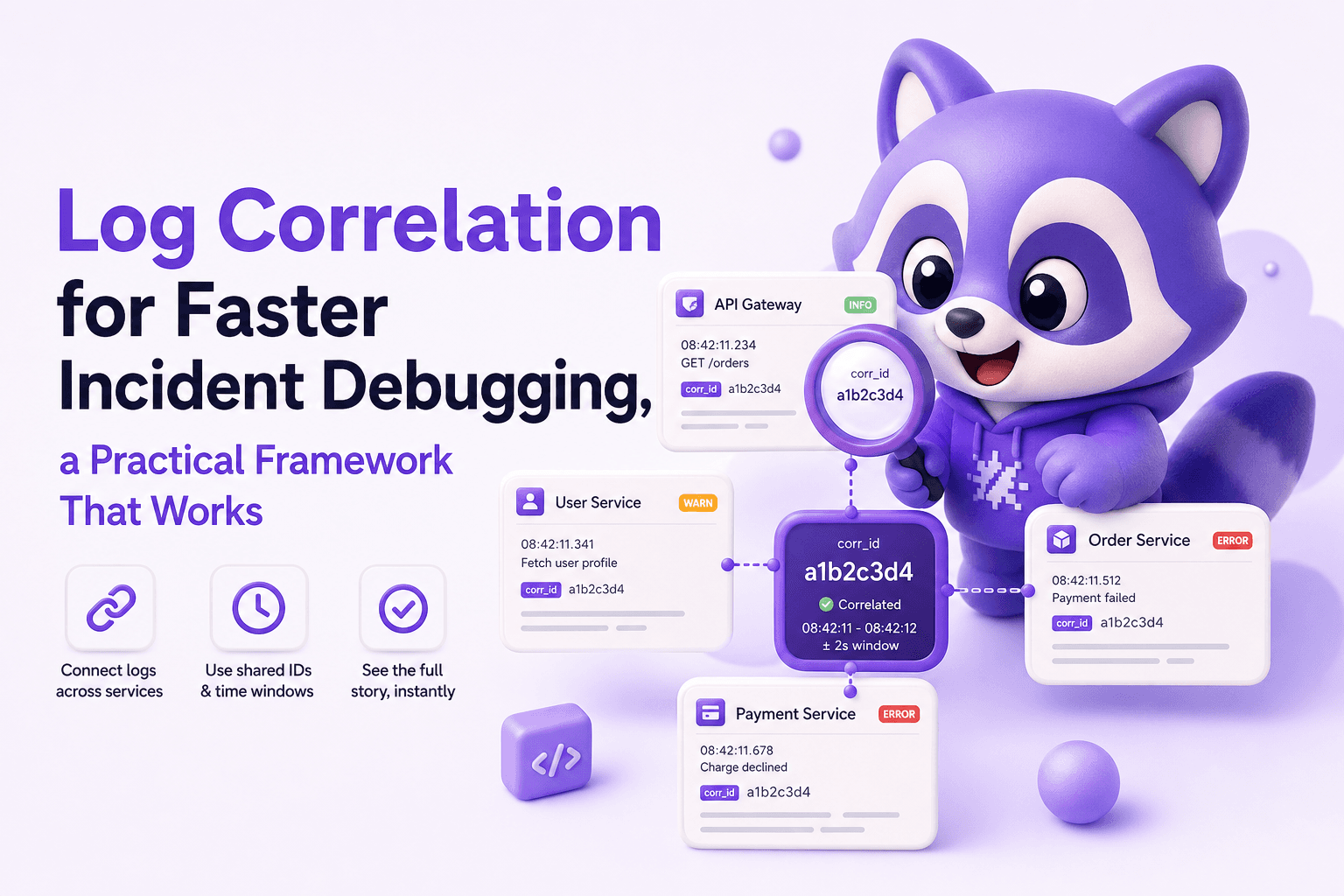
Log Correlation for Faster Incident Debugging, a Practical Framework That Works
Learn log correlation with a practical framework to connect requests across services, reduce noise, and debug production incidents faster.

Session Replay Tracking Explained, What It Shows and Why It Matters
Learn session replay tracking: what it captures, how playback works, and a starter checklist for debugging and UX insights without guesswork.