
Website Session Replay Explained With a Real Example and a Setup Checklist
Website session replay is a debugging method that reconstructs what a real user did on your site (clicks, navigation, DOM changes, and timing) so teams can reproduce issues without guessing the steps. Done well, website session replay turns “it broke” reports into a concrete sequence you can verify, correlate with errors, and fix.
- Session replays are most useful when you pair the playback timeline with technical evidence (console errors, network failures, release, device) and a repeatable reproduction script.
- Capture strategy matters more than the tool: define what to record, when to sample, and how to keep performance and storage predictable.
- Privacy is not optional: use masking, role-based access, retention limits, and a consent plan so replay data is safe to share internally.
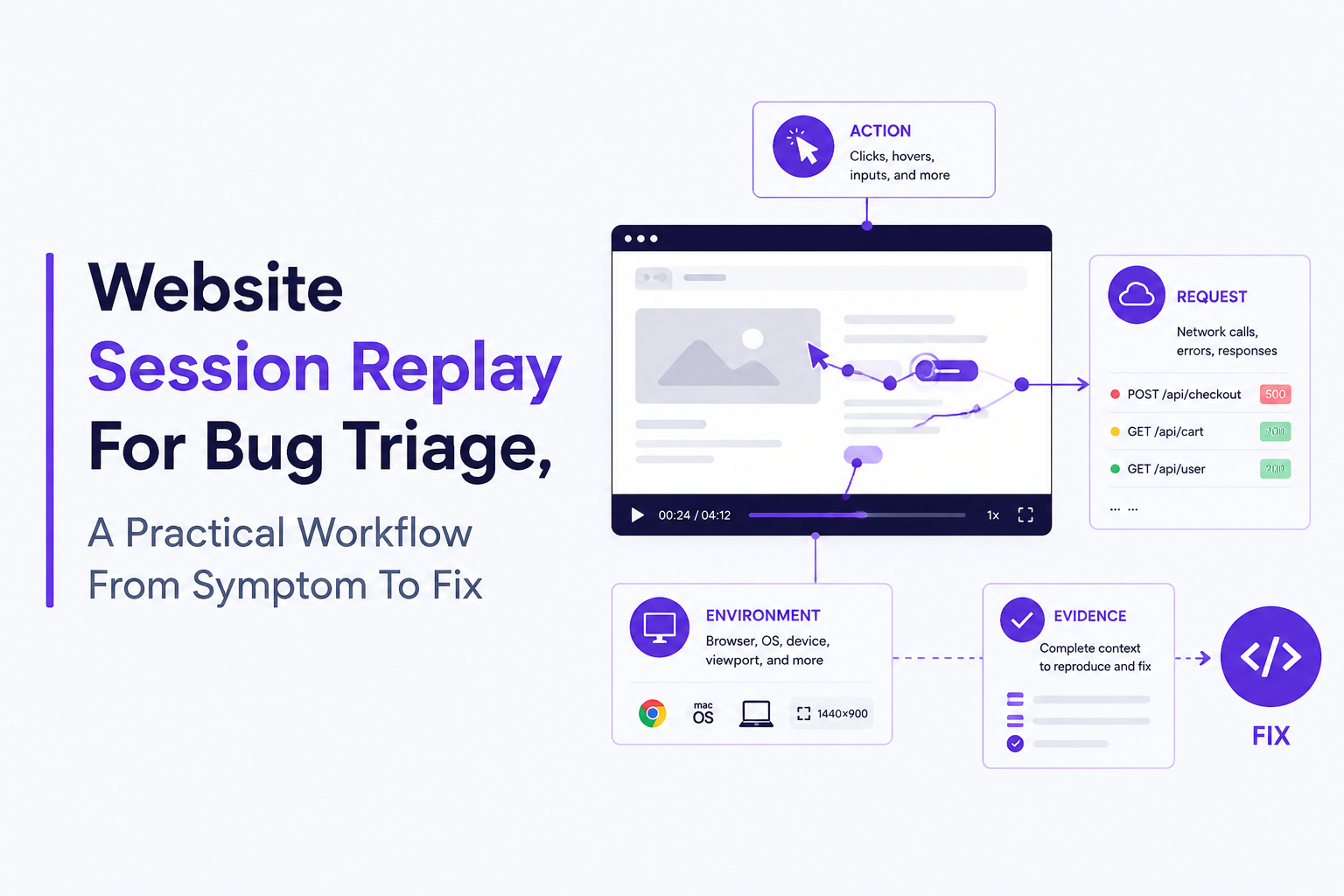
What Website Session Replay Is and What It Captures
Website session replay captures a time-ordered trail of user interactions and page state changes so you can “replay” a session as a video-like reconstruction. Unlike a screen recording, most replay systems rebuild the experience from structured data: the page’s DOM state, DOM mutations over time, and input events (clicks, scrolls, key presses) with timestamps.
What gets captured in a practical replay
- User events: clicks/taps, scroll positions, focus/blur, key presses, form submissions, navigation changes (including SPA route changes).
- Page state: a snapshot of the DOM plus incremental DOM mutations (what changed, where, and when).
- Timeline timing: timestamps that let you see “what happened first” and how long each step took.
What a replay usually is not
- Not guaranteed backend truth: a replay can show “user clicked Pay,” but it cannot alone prove what your server did. You still need request/response evidence.
- Not a perfect pixel video: because it reconstructs from DOM and events, certain rendering differences can appear (fonts, third-party widgets, dynamic canvases).
- Not a full security audit trail: replay data can contain sensitive inputs if you do not mask fields correctly.
A simple mental model you can share with your team
When onboarding engineers and support, we use this model: Replay = timeline of intent (what the user tried) plus state transitions (what the UI did). Then we teach people to always ask, “What technical evidence confirms the failure at that timestamp?” so website session replay becomes a starting point, not the whole investigation.
How Session Replay Data Is Collected, Stored, and Played Back
Session replay works by instrumenting the browser to record structured events and DOM changes, then reconstructing them later in a controlled player. That collection pipeline creates the main tradeoffs teams feel day-to-day: fidelity vs performance, and completeness vs cost.
Collection mechanics in plain English
- Initialization: a client script starts recording after page load (or after consent).
- Snapshot: the system stores an initial DOM snapshot so playback has a baseline.
- Incremental updates: as the UI changes, it stores DOM mutations and user events with timestamps.
- Upload: data is buffered and sent in batches to reduce network overhead.
- Playback: the player rehydrates the snapshot and applies mutations/events in order to reconstruct what the user saw and did.
Sampling and triggers you should decide upfront
“Record everything” is rarely sustainable. A workable framework is to pick one sampling rule and one trigger rule:
- Sampling rule (coverage): record 1% to 20% of sessions broadly, or target specific flows (checkout, signup, onboarding). Choose a number your team can actually review.
- Trigger rule (depth): always retain sessions with high-signal events like uncaught exceptions, a failed API call, or an error banner rendered.
Performance and storage tradeoffs to watch
- Long sessions: set maximum duration or segment sessions (for example, per route or per 10-15 minutes) so replays stay usable.
- High-mutation pages: DOM-heavy apps can generate large mutation streams; consider limiting capture on known “noisy” areas (animated dashboards, rapid timers).
- Uploads on poor networks: buffering helps, but you should verify the recorder does not block the main thread or create visible input lag.
Why replays differ from logs and why you usually need both
Logs answer “what did the system do,” while website session replay answers “what did the user do and see.” In our experience, the fastest investigations happen when the replay timestamp aligns with a concrete technical artifact such as a failing request, a stack trace, or a release version.
A Realistic Website Session Replay Example From Bug Discovery to Fix
A realistic website session replay workflow starts with an issue signal, uses the replay to extract reproducible steps, and then confirms the root cause with technical evidence before shipping a fix. Below is an end-to-end walkthrough modeled on a common checkout failure pattern.
Step 1: Start from an issue signal that is not “someone complained”
Signal examples that work well with replays:
- Spike in 500s on
/api/checkout - Client-side error: “Cannot read properties of undefined” on the payment page
- Support ticket: “I clicked Confirm order and nothing happened”
The key is to anchor the investigation to a timestamp and a user path. If you are using website session replay, the replay link should be associated with the error event or request failure, not discovered manually after the fact.
Step 2: Use the replay to write a reproduction script (not just watch)
Watching is passive. The habit that makes replays useful is writing a short script while you watch:
- Entry page and referrer (ex:
/pricingto/checkout) - Plan selection step
- Form interactions (which fields, in what order)
- Final action (ex: click Confirm order)
- Observed result (spinner stuck, error toast, redirect loop)
What surprised our team the first time we formalized this was how often “one missing step” explained flaky reproduction, like a focus change that triggered address validation or a back navigation that refreshed state.
Step 3: Correlate replay time with technical evidence
At the exact moment the user clicks Confirm order, confirm at least one of these:
- Network:
POST /api/checkoutreturns500, a timeout, or a blocked CORS request - Client error: console exception after the click
- State mismatch: the UI shows success but the request never sent (often caused by client-side validation or disabled button state)
If your replay tool does not show requests, pair the replay timestamp with your server logs or APM trace IDs so you can confirm the backend behavior.
Step 4: Identify root cause using a short “4 checks” grid
Use this grid to avoid chasing symptoms:
- Data: Did the payload differ from expected (missing address line 2, malformed coupon code)?
- Environment: Did it happen only on a specific browser/OS/viewport/release?
- Dependency: Did a third-party payment script fail to load or get blocked?
- Race condition: Did a debounce, retry, or double-submit create conflicting requests?
Step 5: Ship the fix and add a regression guard
Close the loop with one regression guard tied to the discovered failure mode:
- Unit/integration test for the payload shape
- Frontend validation message when required state is missing
- Server-side 4xx with a clear error instead of a generic 500
- Monitoring alert on the specific endpoint and status
Website session replay is at its best here: it gives you the human sequence you can turn into a test and a monitoring condition, not just a one-off fix.
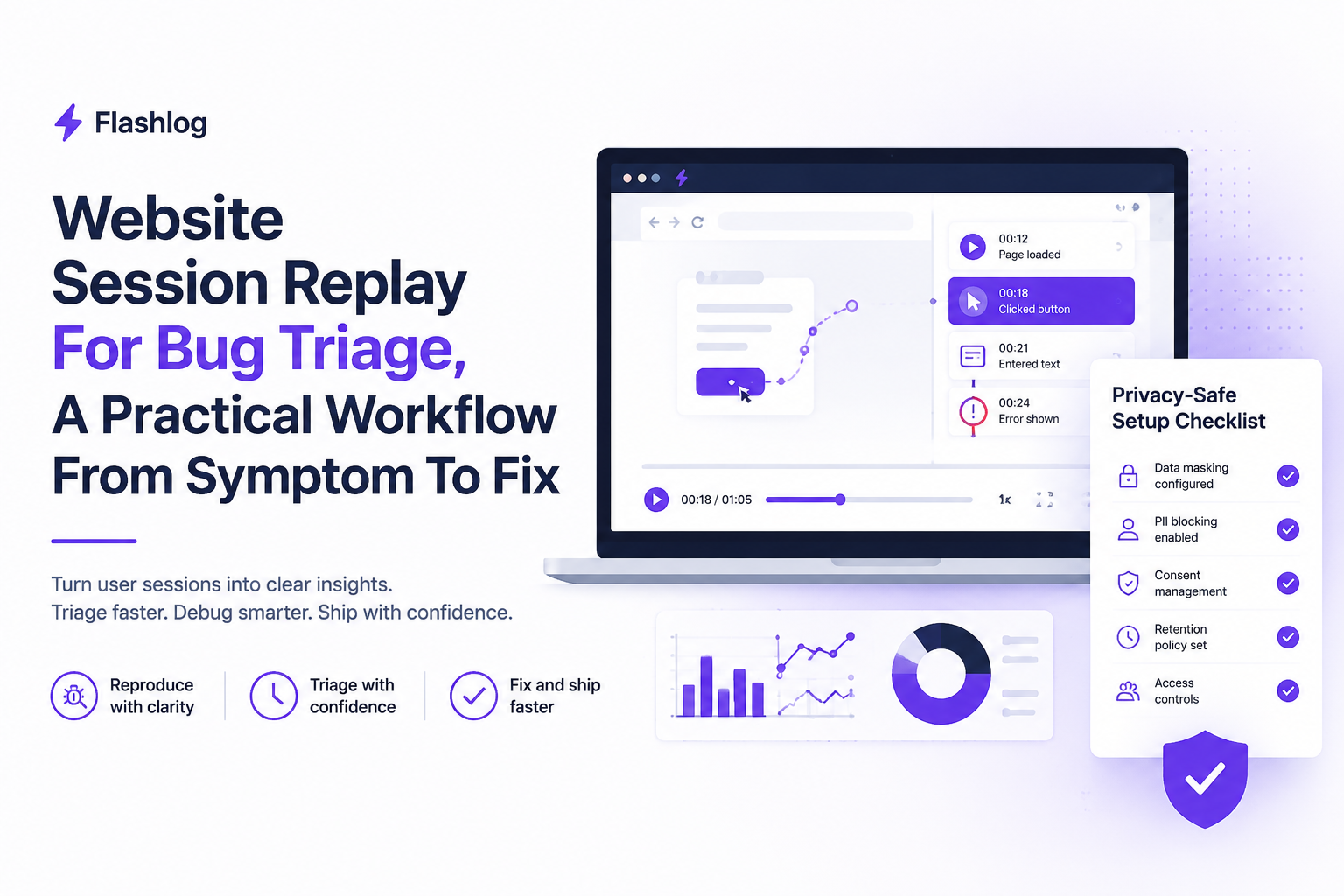
Common Use Cases and When Session Replay Is the Wrong Tool
Session replay is most valuable when you need to see sequence and intent, and it is the wrong tool when you already have deterministic telemetry that answers the question faster. The decision becomes simple if you categorize the question you are trying to answer.
Use cases where replay consistently pays off
- Bug reproduction: “What exact steps preceded the failure?” especially for UI state, multi-step forms, and SPA navigation.
- Support triage: “What did the customer mean by ‘it didn’t work’?” without asking for screenshots.
- UX friction investigations: rage clicks, repeated form edits, back-and-forth navigation, dead clicks.
Anti-patterns where replay slows you down
- Pure backend correctness: if you need to validate database writes or authorization logic, start with logs and traces.
- Performance profiling: for CPU and rendering bottlenecks, use browser performance tools and RUM metrics first; replay is secondary context.
- Highly sensitive flows without masking maturity: do not record full sessions on login, billing, or health data pages until privacy controls are proven.
A quick decision checklist
- Choose replay first if the problem depends on order of actions or UI state transitions.
- Choose logs/traces first if the problem depends on server-side branching or data integrity.
- Choose both when the bug spans client intent and backend response, which is common in checkout and onboarding.
One practical note on “replay alone” blind spots
In teams we have worked with, the sticking point is not getting a replay, it is getting an actionable replay attached to a specific failure. Tools like Flash Log are built around that idea by capturing the user journey plus the failing request and environment context automatically, even when a user never reports the bug, so engineering starts from evidence instead of a vague description.
Privacy and Compliance Basics for Website Session Replay
Privacy-safe website session replay requires explicit decisions about masking, access control, retention, and consent so recordings do not become a liability. The safest teams treat replay data like production logs: useful, sensitive, and governed.
A privacy-safe setup checklist you can implement this week
- Mask inputs by default: passwords, payment fields, tokens, and any free-text fields likely to contain personal data.
- Prefer allowlists over denylists: explicitly allow recording on low-risk pages; expand coverage after review.
- Role-based access control (RBAC): limit replay viewing to support and engineering roles that need it; avoid sharing links broadly.
- Retention limits: set a short default retention period aligned to debugging needs, then extend only for specific investigations.
- Consent and notice: coordinate with legal on GDPR/CCPA notice language and consent requirements for your region and category.
Do and don’t guidance that prevents the common mistakes
- Do verify masking with real test data, including copy/paste, autofill, and mobile keyboards.
- Do redact query parameters and headers if they may contain identifiers.
- Don’t rely on “we never store PII” assumptions; replay captures what users type unless you block it.
- Don’t give every teammate replay access just because the tool allows it.
Where to look for standards (without over-lawyering it)
If you need a starting point for internal guidance, map your replay policy to widely used privacy frameworks like the CCPA overview and your organization’s GDPR process. For deeper practical handling, a focused guide on sensitive data in replays helps teams translate policy into configuration.
| Question you need answered | Best primary tool | How website session replay helps | Common pitfall |
|---|---|---|---|
| What steps triggered the bug? | Replay + error event | Shows the exact action order and UI state | Watching without writing reproduction steps |
| Why did the API fail? | Logs/APM traces | Provides the user context at the failure timestamp | Assuming replay proves backend cause |
| Is the issue environment-specific? | Replay metadata + analytics | Correlates browser/OS/viewport/release to failures | Ignoring release/version in triage |
| Are users struggling with a flow? | Replay + funnel metrics | Explains friction patterns (rage clicks, dead clicks) | Optimizing based on a few “interesting” sessions |
FAQ
If website session replay still leaves you with “we saw it happen, but we can’t pinpoint the failing request or environment,” Flash Log is worth a look: it focuses on automatically capturing and classifying bugs with the surrounding journey, request trail, and masked context so engineering can reproduce issues without repeatedly asking users to explain what they did.
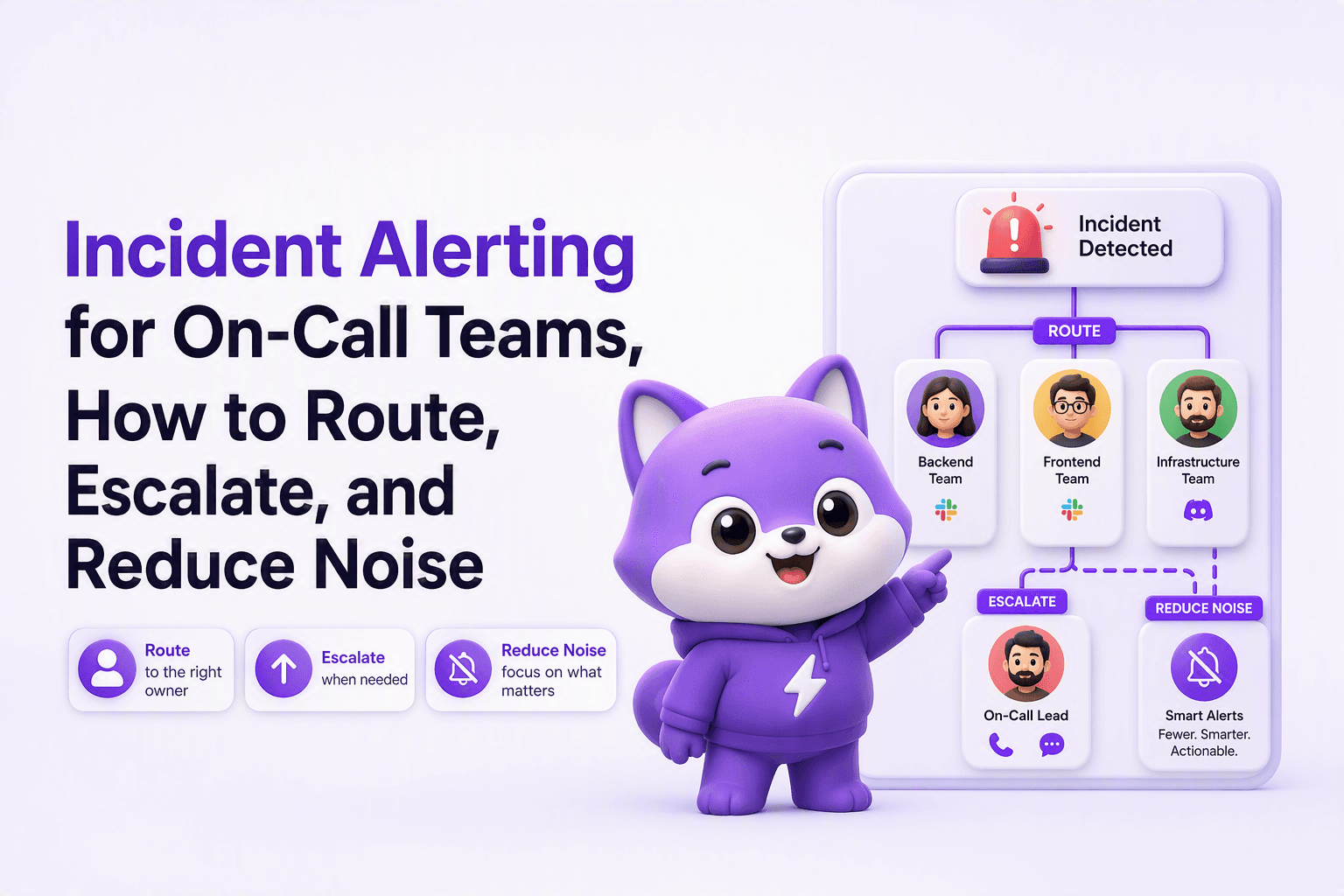
Incident Alerting for On-Call Teams, How to Route, Escalate, and Reduce Noise
A practical incident alerting framework: route by owner, set severity thresholds, dedupe noise, and escalate alerts into incidents with clear rules.
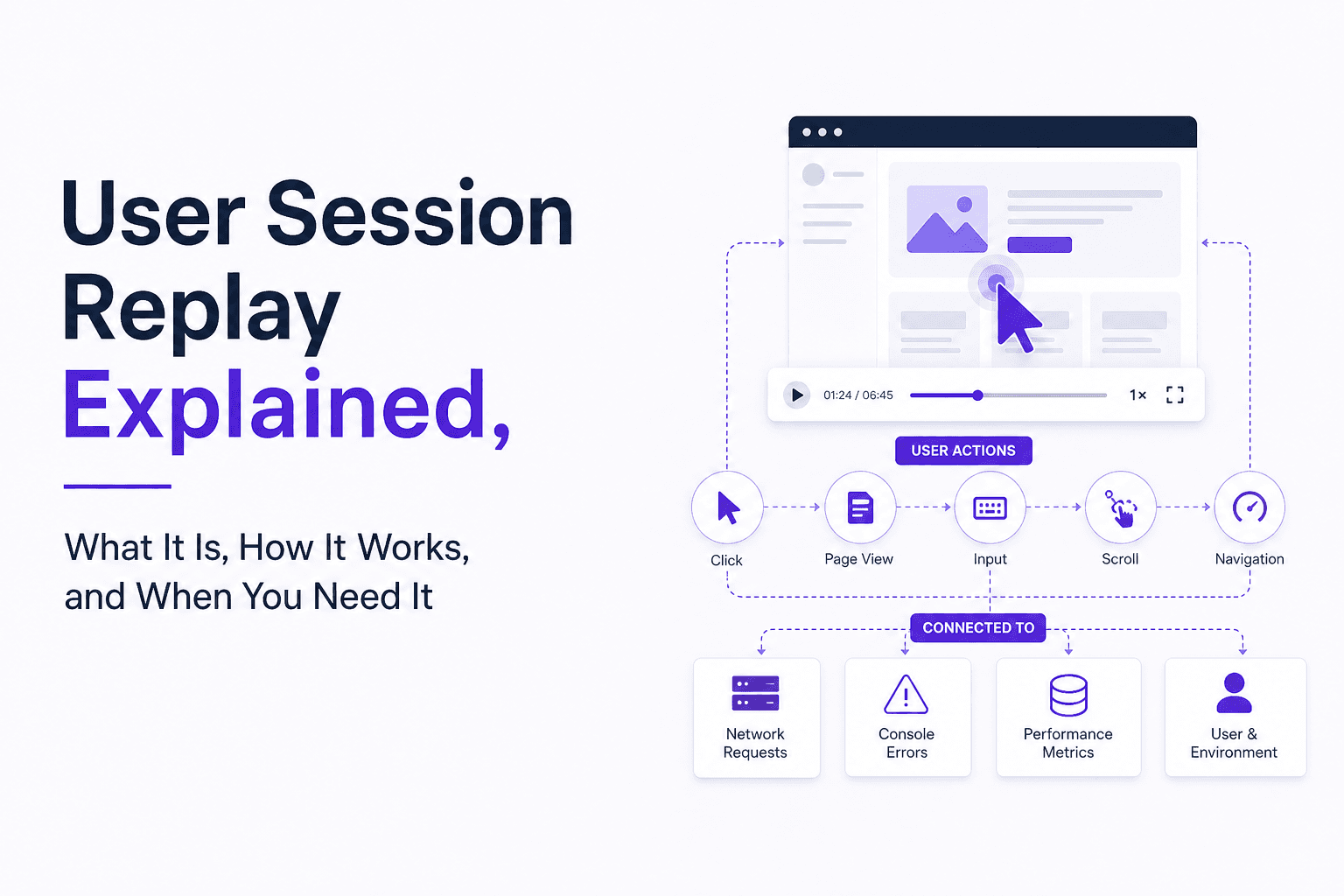
User Session Replay Explained, What It Is, How It Works, and When You Need It
Learn what user session replay is, how it works, what problems it solves, and a checklist to decide if you need user session replay.
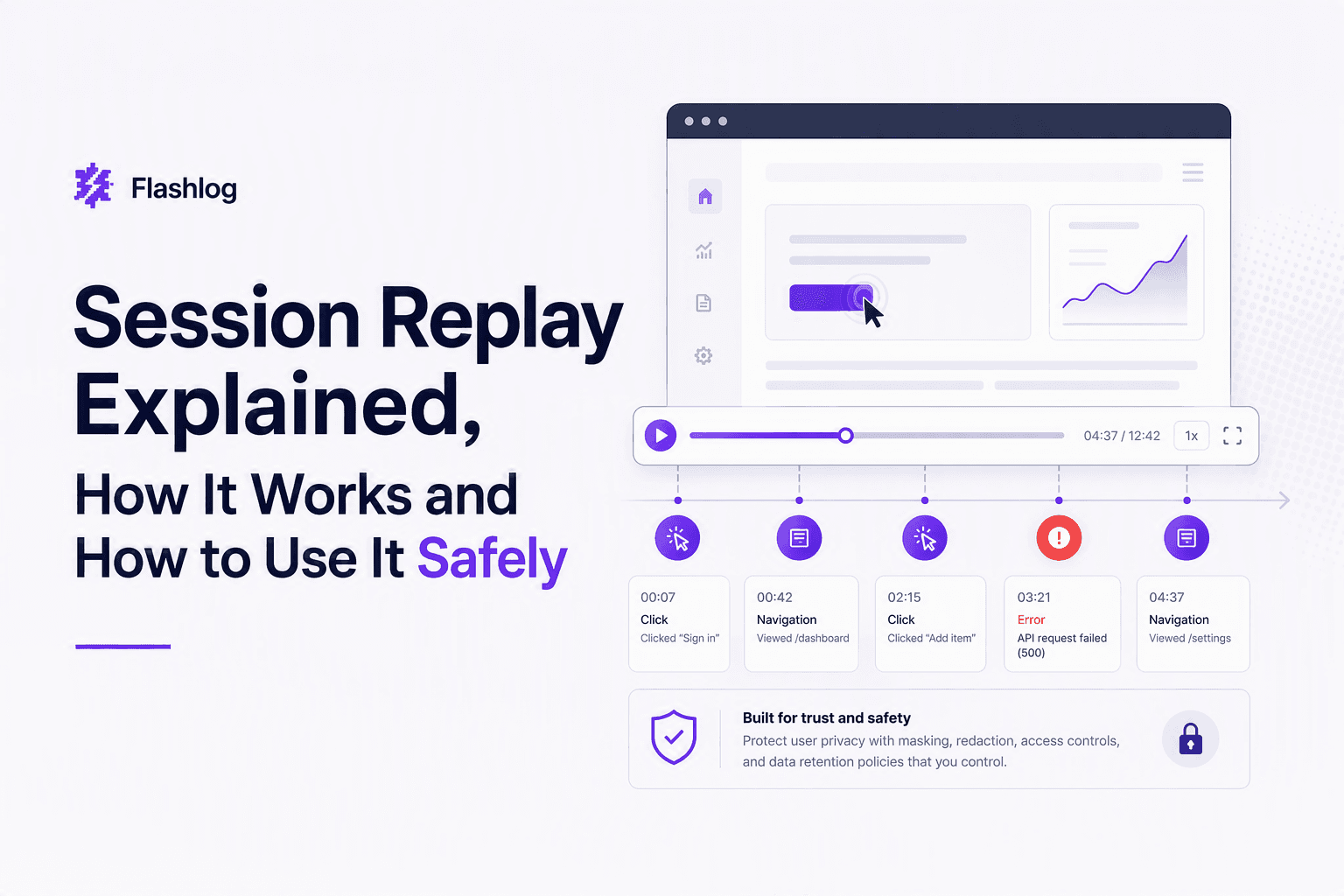
Session Replay Explained, How It Works and How to Use It Safely
Session replay explained for buyers: what it captures, how it works, and a practical privacy checklist and decision tree for safe deployment.